Overview
OfficePlace Group Calendar is designed to provide a flexible and seamless experience across different environments. Besides accessing OfficePlace Group Calendar directly via a web browser, you can also work with it either as a Progressive Web App (PWA) installed on your device for quick, app-like access, or directly within your Microsoft 365 tools such as Microsoft Teams and Microsoft Outlook for a fully integrated workflow.
Progressive Web App (PWA) installation guide
Installing OfficePlace Group Calendar as a PWA
A Progressive Web App (PWA) combines the best features of web and desktop applications. By installing OfficePlace Group Calendar as a PWA, it behaves like a native app. You can:
- Open the app directly in its own window, free from browser tabs.
- Always use the latest version without manual downloads.
- Enjoy a clean performance.
Supported browsers and platforms
- Microsoft Edge (Recommended for the best integration with Microsoft 365)
- Google Chrome
- running on either Windows or macOS.
Installation instructions
Step 1: Access the OfficePlace Group Calendar on web
- Open Microsoft Edge or Google Chrome.
- Navigate to: https://groupcalendar.officeplace.global/
- Sign in with your Microsoft 365 credentials as usual.
Step 2: App installation
You can install the app using one of the following two methods:
Option A: Using the Address Bar (Recommended)
- Look at the right side of the browser's address bar.
- Click the PWA install button on the right side of the address bar


- Click [Install] in the confirmation pop-up.
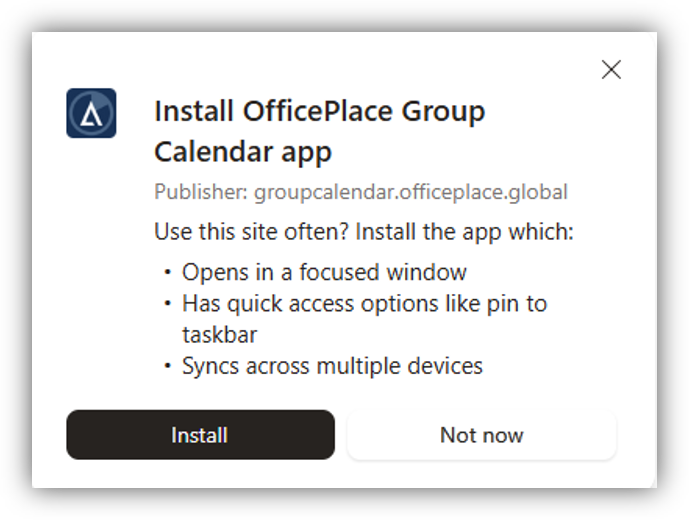
Option B: Using the Browser Menu
- For Microsoft Edge: Select More tools → Apps → Install OfficePlace Group Calendar
- For Google Chrome: Select Cast, save, and share → Install OfficePlace Group Calendar
- Click [Install] in the confirmation pop-up.
Starting the app
Once installed, OfficePlace Group Calendar behaves like any other application on your computer:
- Windows: Find it in the Start Menu or search via the Taskbar.
- macOS: Look for it in your Applications folder or via Spotlight Search.
You can also Pin the app to taskbar (Windows) or Keep in Dock (macOS) for convenience. The app opens in its own window. No browser tabs are shown.
Uninstalling the app
If you need to remove the PWA installed:
- In Windows: Go to Settings → Apps → Installed Apps, find OfficePlace Group Calendar, and select Uninstall.
- In macOS: Open Applications → Locate OfficePlace Group Calendar → right click the app and select Move to trash.
Summary
Using OfficePlace Group Calendar as a PWA gives you:
- Fast access
- A clean app experience
- Full Microsoft 365 integration
This is the recommended way to use OfficePlace Group Calendar for daily work.
Installing OfficePlace Group Calendar as an app in Microsoft Teams and Outlook
By installing OfficePlace Group Calendar to your Microsoft Teams and Microsoft Outlook applications, you can:
- Open the app directly in Microsoft Teams and Outlook, free from browser tabs.
- Always use the latest version without manual downloads.
- Access the OfficePlace Group Calendar instantly without the need for sign-ins.
- Decide exactly who in the company gets to use the OfficePlace Group Calendar.
Prerequisites and supported platforms
- Prerequisites:
- Microsoft 365 account with Global Admin or Exchange Admin permissions.
- The OfficePlace Group Calendar package (a .zip file contains a manifest file and icons)
- Supported Platforms:
- Desktop: Microsoft Teams & Outlook for Windows and macOS.
- Web: Modern browsers (Microsoft Edge and Google Chrome).
Installation instructions
The OfficePlace Group Calendar can be deployed for both Microsoft Teams and Microsoft Outlook at once, with the following steps:
Step 1: Access centralized deployment
- Navigate to Microsoft Teams admin center and sign in with your credentials.
- In the left-hand menu, go to Teams apps → Manage apps.
Step 2: Upload the OfficePlace Group Calendar app package
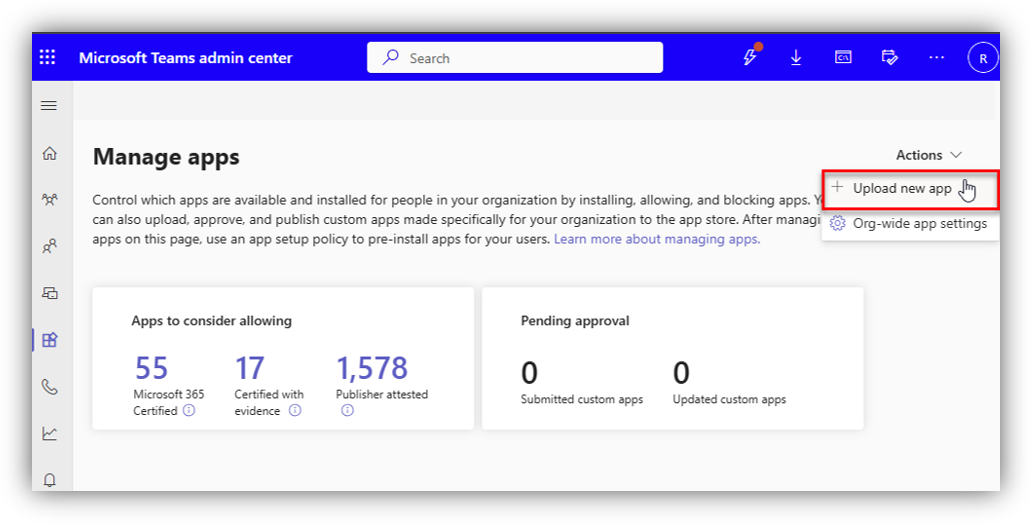
- On the upper-right corner of the Manage apps screen, click the Actions drop-down button and select [Upload new app].
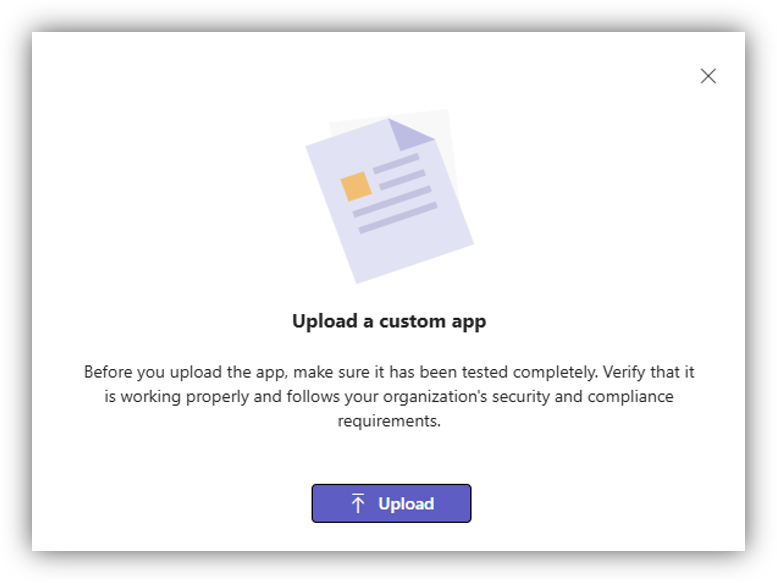
- A pop-up window will appear; click [Upload] and browse to select the OfficePlace Group Calendar (.zip) package from your device.
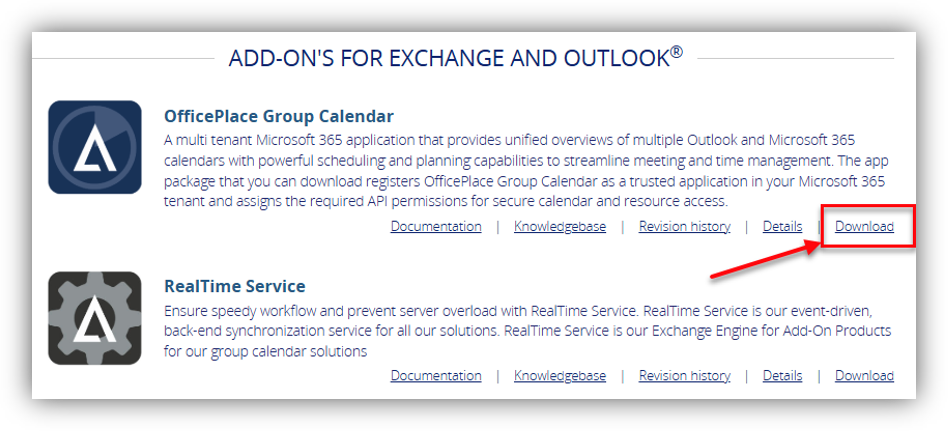
Note: The Group Calendar application package can be downloaded to your device from https://maintenance.add-on.com/. Fill in your email address and ALN number and you will be able to download it directly.
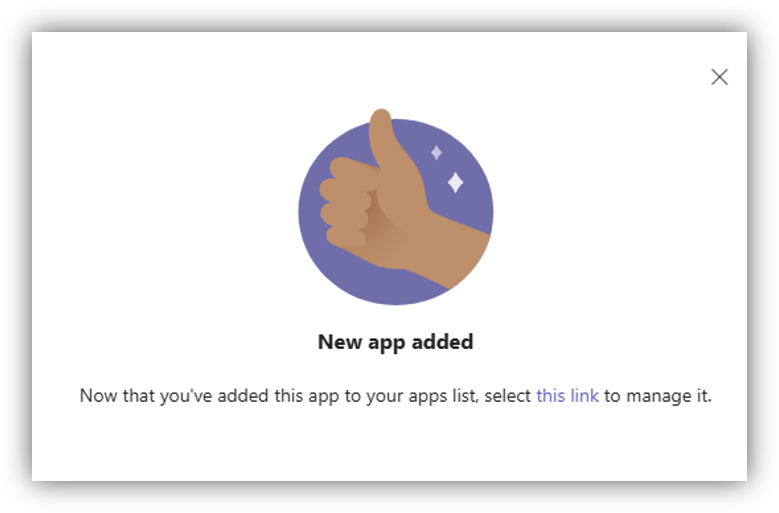
- Wait for the uploading process to complete. You will receive a notification once it is successful, and the app will then be present in your organization's app list. The app is now available for everyone in the organization to install.
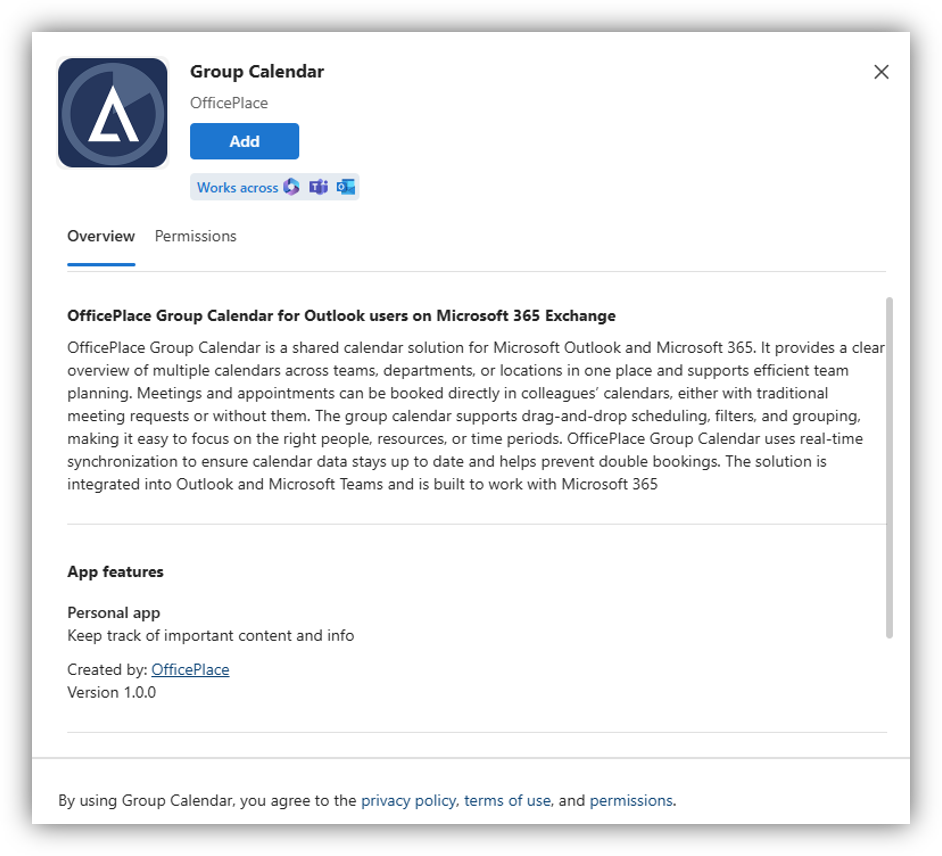
Step 3: Install OfficePlace Group Calendar for Microsoft Team
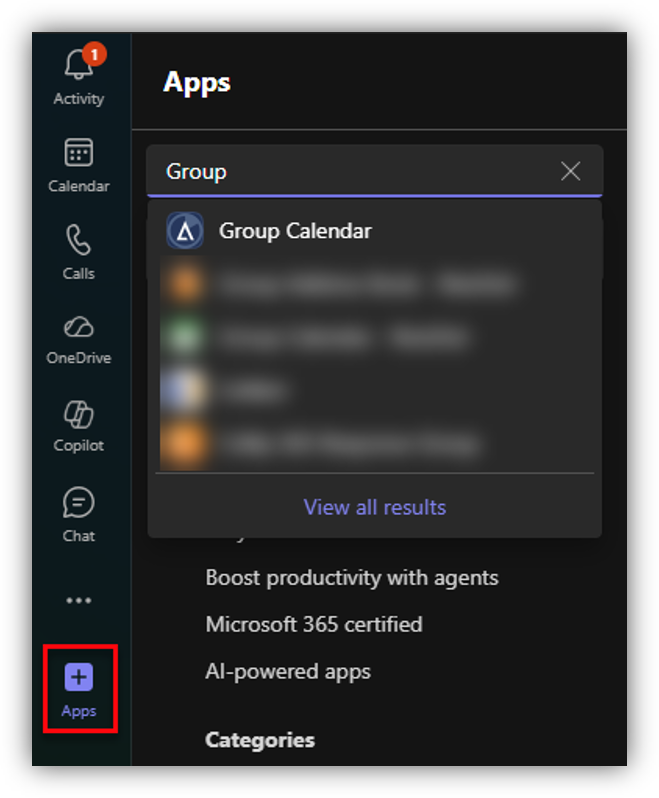
- Open your Microsoft Teams desktop or web application.
- Click the Apps icon on the left-hand sidebar and use the search bar to find "OfficePlace Group Calendar”.
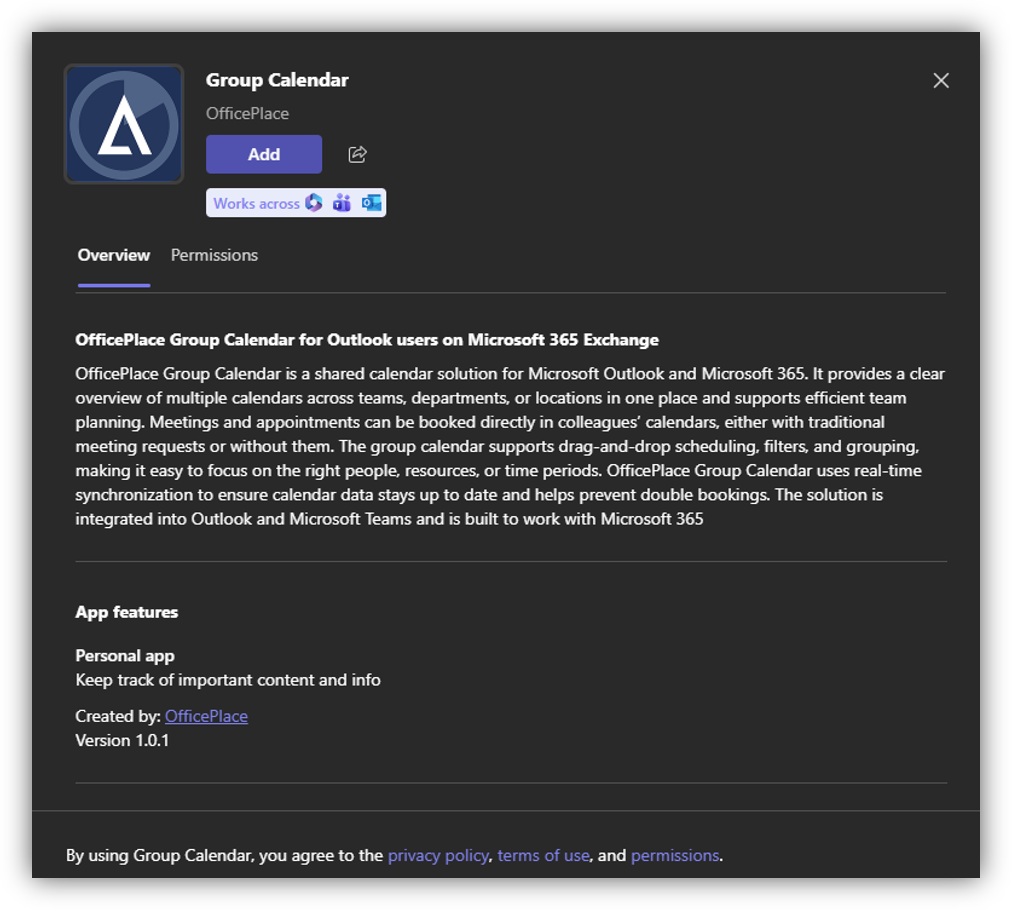
- Click on the app from the results, then hit the [Add] button to complete the installation.
Step 4: Install OfficePlace Group Calendar for Microsoft Outlook
- Open your Outlook desktop or web application.
- Click the Apps icon on the left-hand sidebar and then click [Add apps] and use the search bar to find "OfficePlace Group Calendar”.
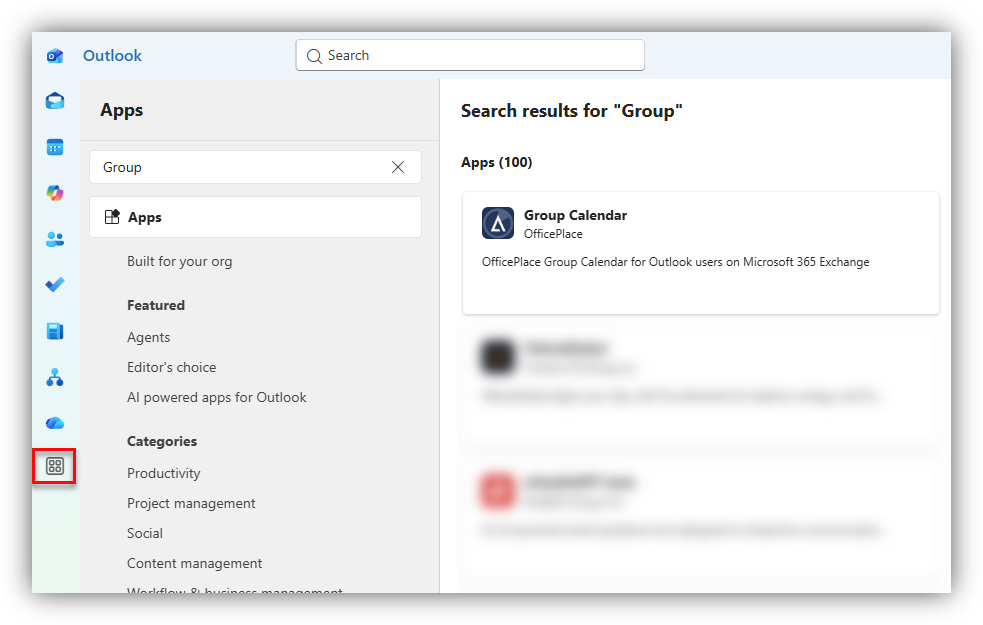
- Click on the app from the results, then hit the [Add] button to complete the installation.
Starting the app
To access the OfficePlace Group Calendar once it's installed in Microsoft Teams, follow these steps:
- Click the three dots [···] button on the left sidebar of Microsoft Teams.
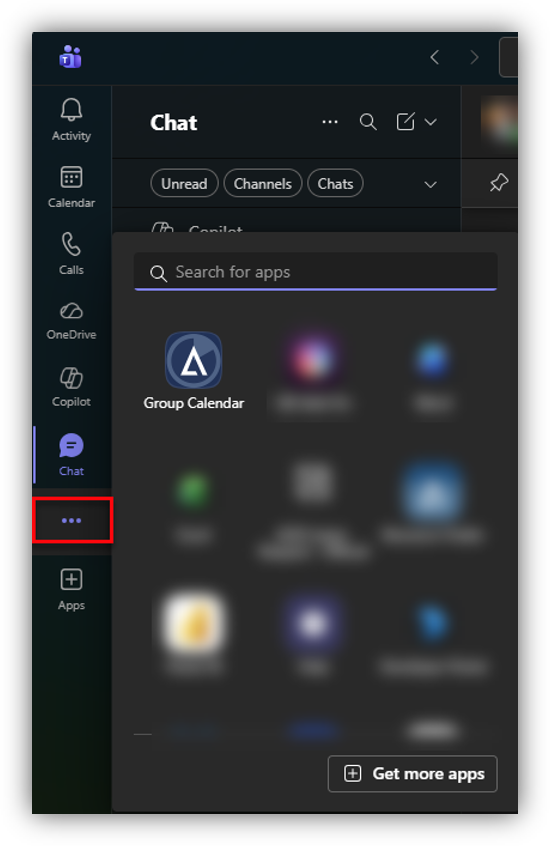
- Look through your list of installed apps. If you don't see it immediately, use the search bar.
- Click on the Group Calendar icon to use the app instantly without needing to sign in.
To access the OfficePlace Group Calendar once it's installed in Outlook, follow these steps:
- Click the Apps button on the left sidebar of Outlook.
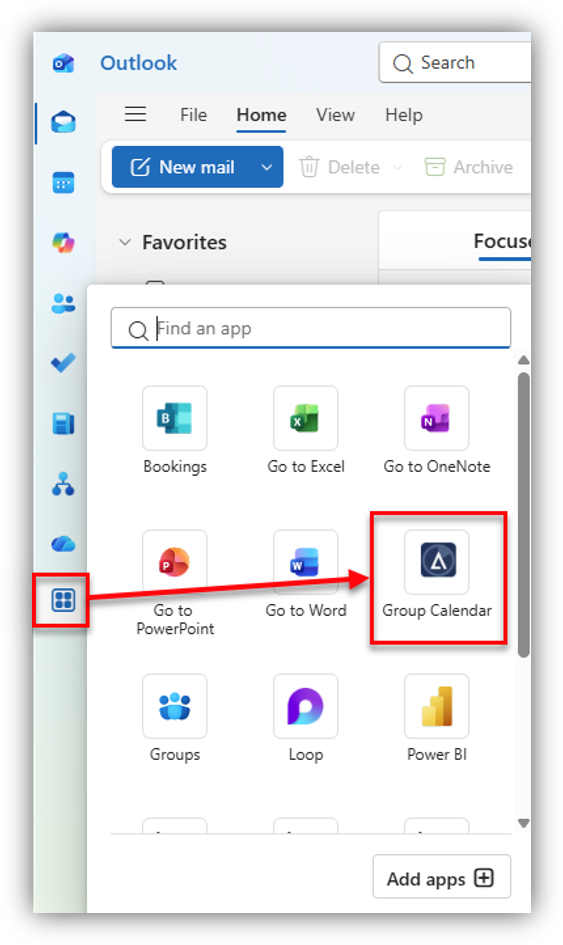
- Look through your list of installed apps. If you don't see it immediately, use the search bar.
- Click on the Group Calendar icon to use the app instantly without needing to sign in.
Uninstalling the app
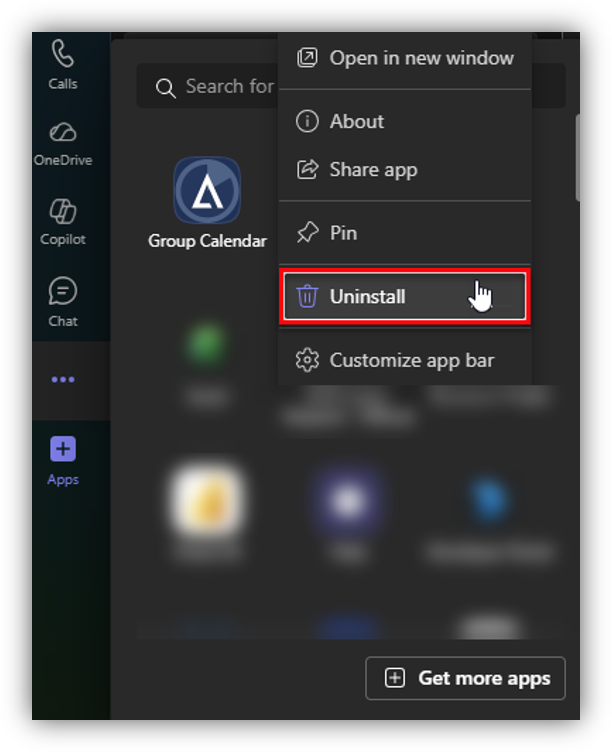
To remove the OfficePlace Group Calendar from Microsoft Teams, follow these steps:
- Click the three dots […] button on the left sidebar of Microsoft Teams.
- Look through your list of installed apps. If you don't see it immediately, use the search bar.
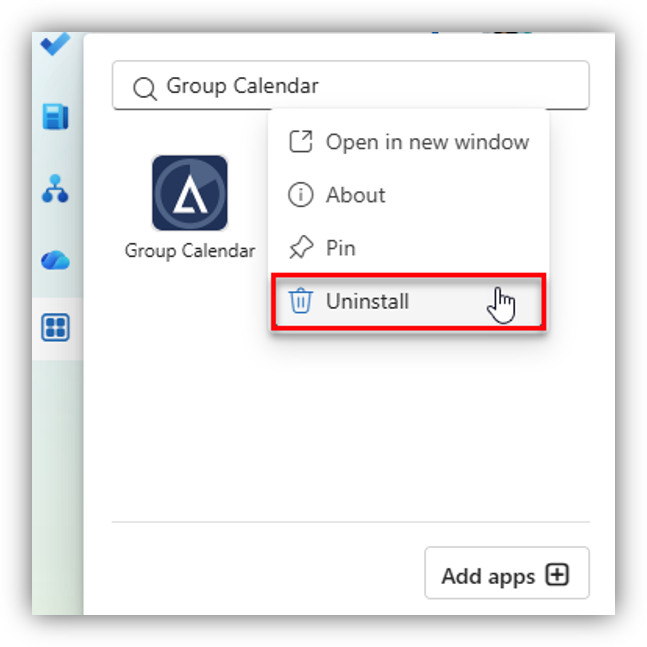
- Right-click on the Group Calendar icon and select [Uninstall]. Confirm the removal when prompted.
To remove the OfficePlace Group Calendar from Microsoft Outlook, follow these steps:
- Click the Apps button on the left sidebar of Outlook.
- Look through your list of installed apps. If you don't see it immediately, use the search bar.
- Right-click on the Group Calendar icon and select [Uninstall]. Confirm the removal when prompted.
Summary
Using OfficePlace Group Calendar in Microsoft Teams and Outlook gives you:
- Fast and sign-in-free access.
- Unified experience within your daily workspace, no need for browser tabs.
- Limit access for the specific users/groups in your organization.
- No local installation or updates.
- Full Microsoft 365 integration.
This is the recommended way to use OfficePlace Group Calendar for daily work.
Properties
Applies to: OfficePlace Group Calendar
Reference: TFS #463902
Knowledge base ID: 0357
Was this article helpful?
That’s Great!
Thank you for your feedback
Sorry! We couldn't be helpful
Thank you for your feedback
Feedback sent
We appreciate your effort and will try to fix the article