Overview
This knowledgebase article provides step-by-step instructions for setting up the Group Calendar product on OfficePlace. It is intended for administrators and covers the necessary configuration to prepare the environment for use.
After completing the setup in this KB, refer to the OfficePlace Group Calendar User Guide for instructions on how end users can access and use the Group Calendar features.
Prerequisite: Before performing the following steps, make sure that the Group Calendar Users license is active in your OfficePlace tenant.
Step-by-step instructions
Step 1: Login to OfficePlace
Begin by launching your web browser and entering the URL of the web server hosting OfficePlace in the address bar: https://admin.officeplace.global/
This will display the OfficePlace login screen as shown below: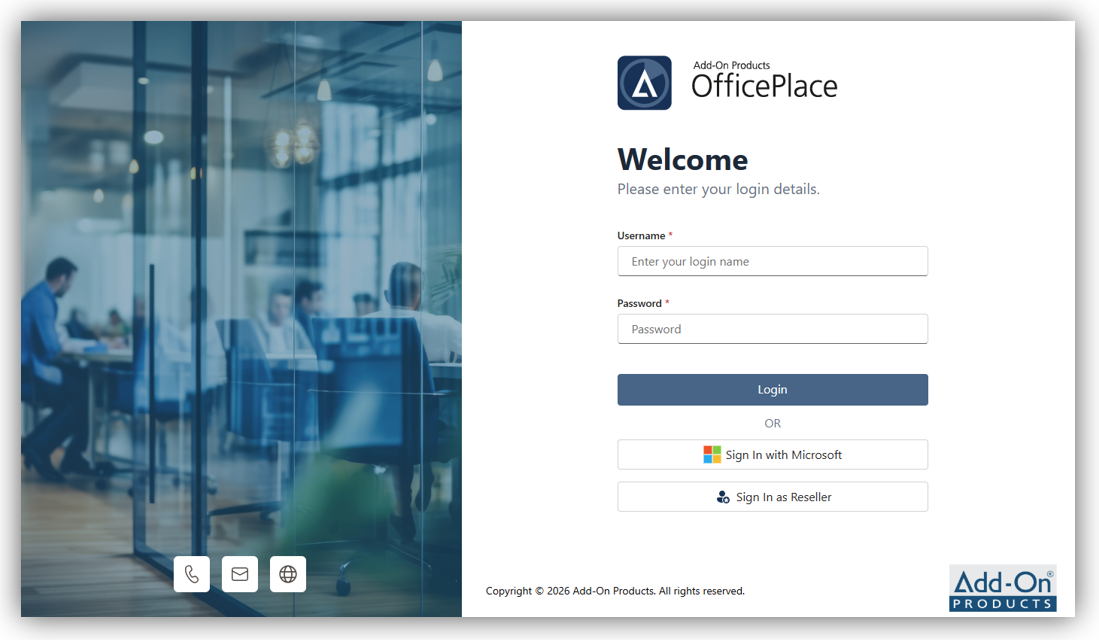
Then, log in with your user account credentials provided, which have been assigned the appropriate permissions to access the required sections by Add-On Products. You will then be directed to the Organization Management section where you can view and manage the organizations you belong to, provided you have the appropriate permissions.
Step 2: Configure Entra Application for Organization
Navigate to the Organization Management section and open the created organization. E.g.: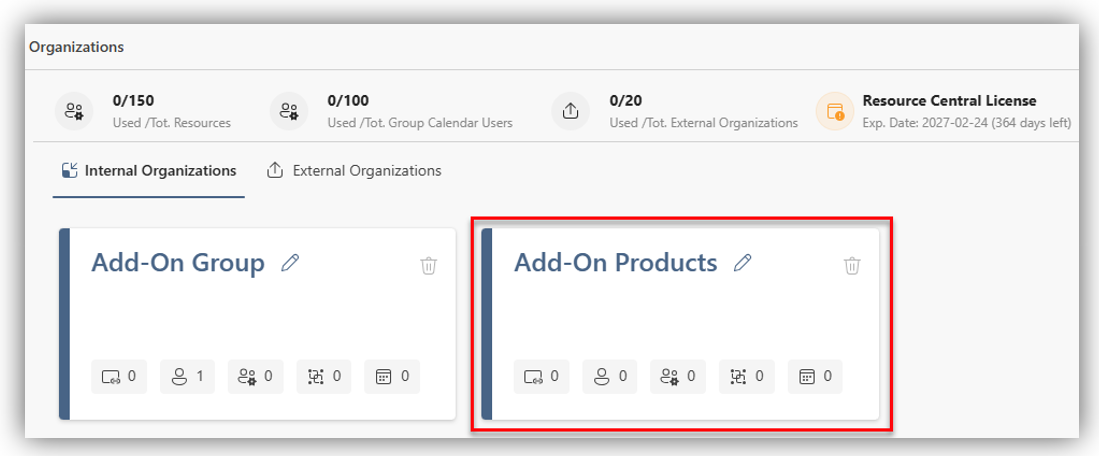
In your organization, you can configure settings to enable the connection to Azure AD / Exchange Online data for resources and users under the Application tab. The application configurations are necessary to sync data between the Organization and Azure AD / Exchange Online.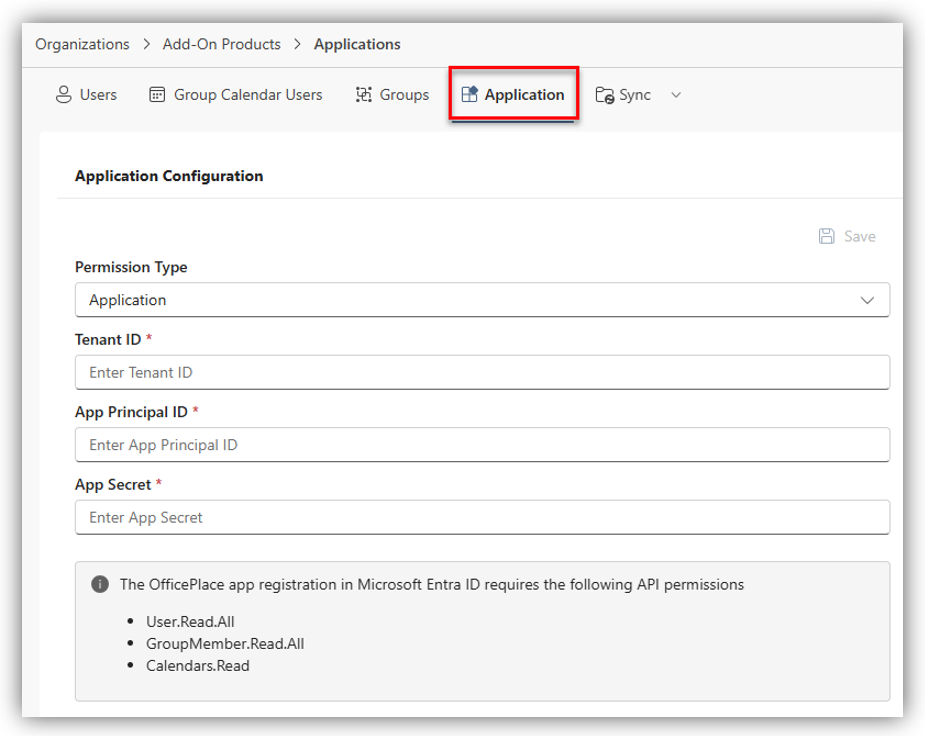
The Application Configuration section must be configured by selecting one of the two Permission types that will enable the ability of searching and synchronizing of identity information for users, resources, and groups, as well as calendar details between Entra ID/Exchange Online and your Organization. There are two permission types:
Permission Type | Description |
Delegated | Delegated permissions are granted to an application on behalf of a user. These permissions allow the application to act as the signed-in user, accessing data and resources based on what that user is allowed to do. Refer to this KnowledgeBase article - Azure Application Configuration for Group Calendar (Delegated) for instructions on how to retrieve the details needed to fill in the fields. |
Application | Application permissions are granted directly to the application itself. These permissions allow the application to access resources or perform actions without the involvement of a user. Refer to this KnowledgeBase article - Azure Application Configuration for Group Calendar (Application) or Azure Application Configuration for Group Calendar (Application) using Exchange RBAC for instructions on how to retrieve the details needed to fill in the fields. |
► For Application type, after completing the required fields, click [Save]. When the configuration is saved successfully, proceed to the next step.
► For Delegated type, after filling in the required fields, you need to retrieve a token from the service account (see the Service account permission requirement section below) to ensure it has proper access to the recipients within the application. Click [Get token], and a pop-up window will appear. Enter the service account from your organization's Azure AD tenant to obtain an Access Token for accessing group calendar users’ identities, as well as calendars and mailboxes.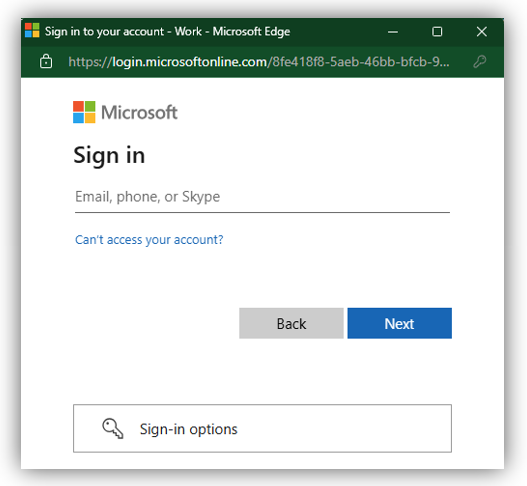
Once the account is authenticated and authorized, a message will display confirming that the token has been successfully retrieved from that account. Click [Save] to save the configuration.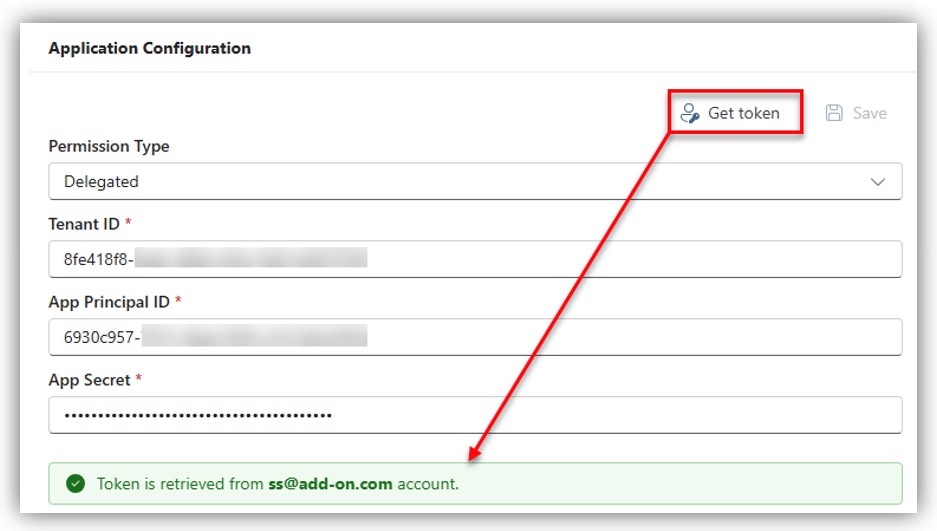
Service account permission requirement
The service account must be granted Read and Manage (Full Access) permission to all Group Calendar Users (that you intend to import into OfficePlace in Step 3) before obtaining the access token. To configure this, open a browser and navigate to the Exchange Admin Center.
To assign permissions to a specific Group Calendar User (which can be either a resource or a mailbox) in the Exchange Admin Center, follow these steps:
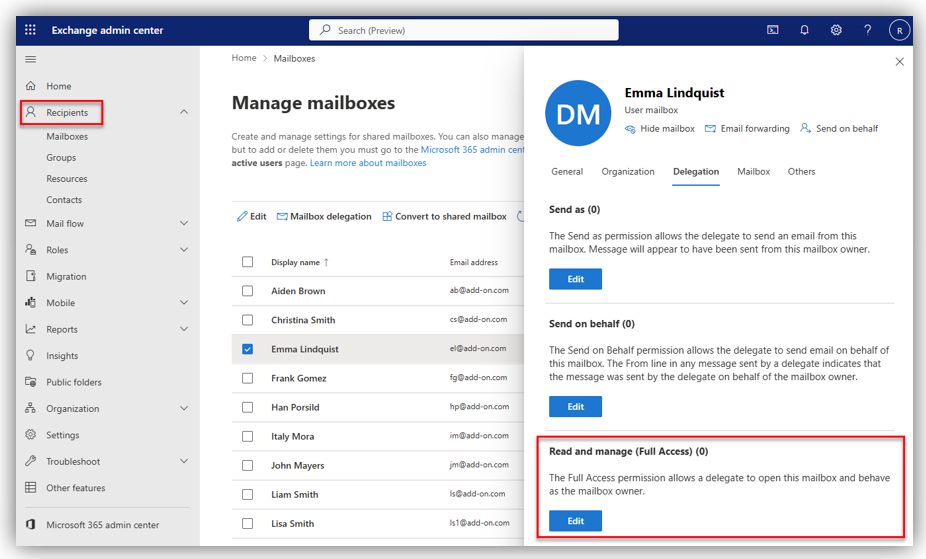
- From the sidebar, navigate to Recipients ® Resources (for rooms/equipment) or Recipients ® Mailboxes (for user/shared mailboxes).
- Select each recipient individually to assign permissions. In the details panel, open the Delegation tab. Three permission options are displayed, but for the service account, only Read and Manage (Full Access) is required. E.g.:
- In the Read and Manage (Full Access) section, click [Edit] to open the Manage delegation dialog, e.g.:
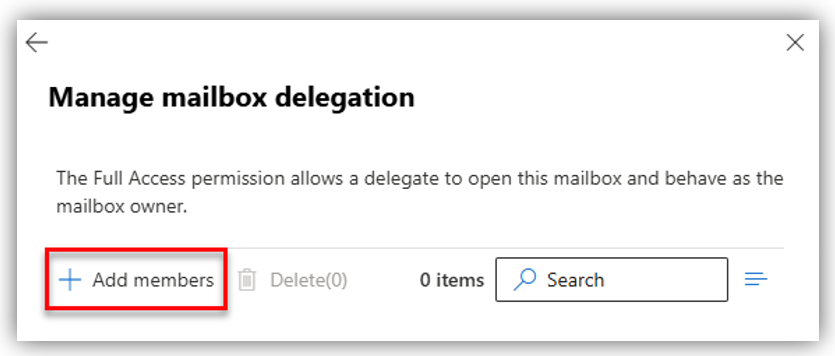
- Click Add members, then search for and select the service account, e.g.:
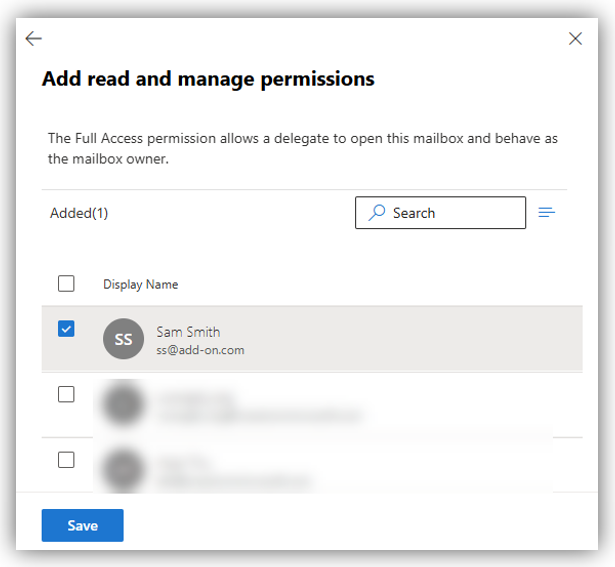
- Click [Save] and confirm when prompted to add it. If the permission is added successfully, you will meet the notification below:
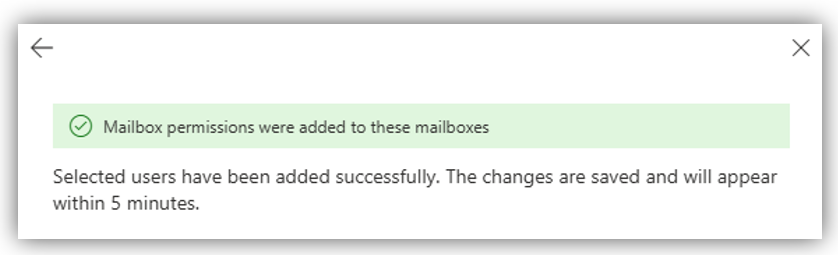
Repeat the same steps to add the remaining group calendar users.
Step 3: Import Group Calendar Users
After successfully configuring the Application tab, you can import group calendar users via Group tab.
To add new group(s) from Azure AD / EXO, click [Import] to open ‘Import groups’ screen. 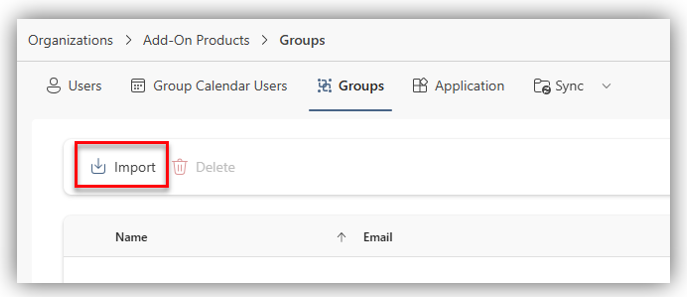
Here, you can enter their information in the search bar to find groups within your Azure AD or Exchange Online tenant. Click [Next] and the confirmation screen will appear.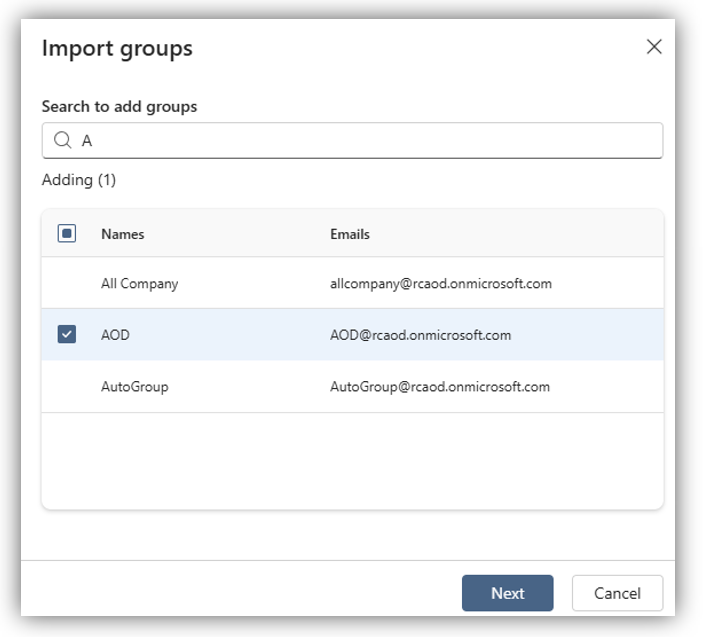
You can select the group type = ‘Group Calendar Users’ of the group by clicking the small arrow beside the group’s name. Click [Next] to finish.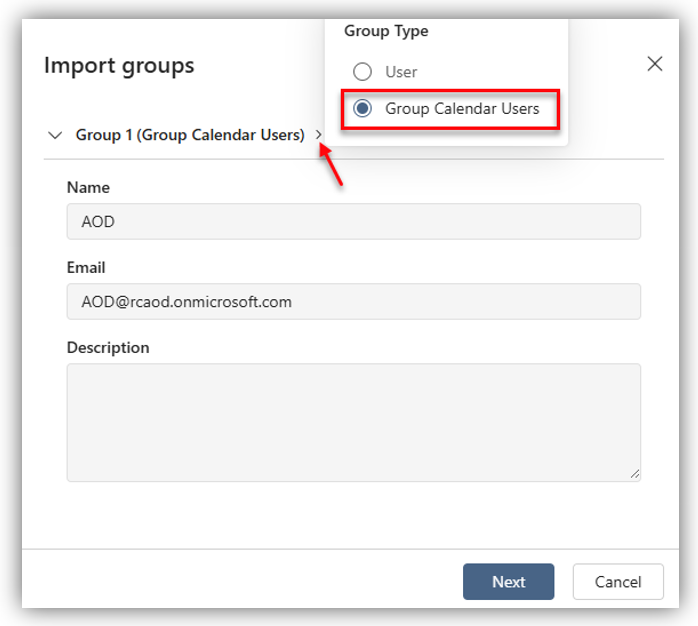
This action imports the group’s members into the Group Calendar Users tab in the OfficePlace Organization. Multiple groups can be imported simultaneously.
Step 4: Monitor the synchronization of group calendar users
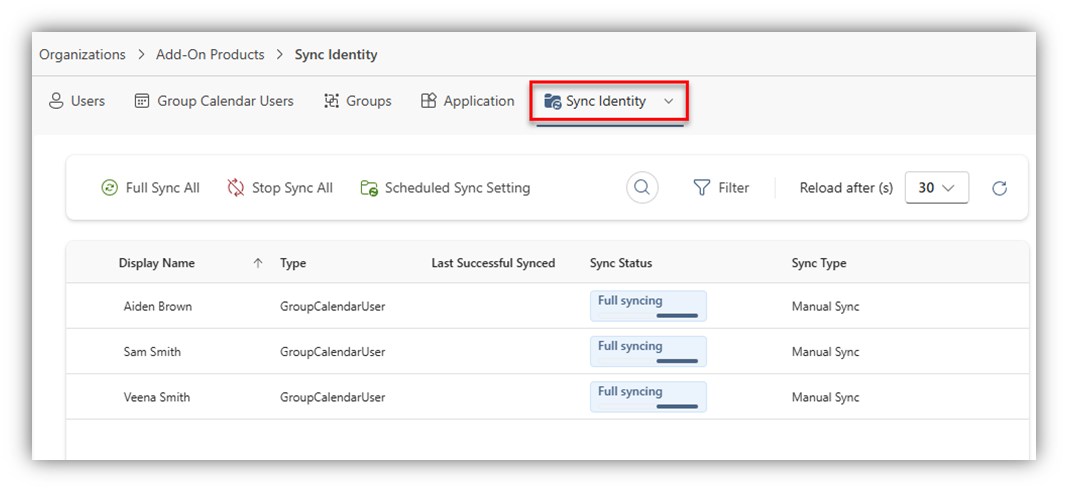
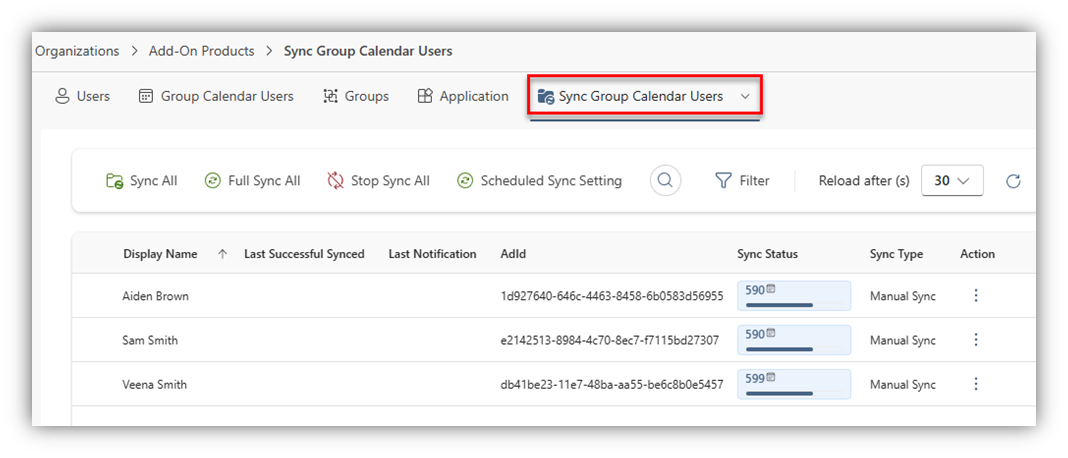
Right after importing the groups into the OfficePlace system, OfficePlace will automatically trigger a full identity and calendar synchronization for them in the Sync section.
- Identity synchronization:
- Group Calendar Users synchronization:
After the full-syncing progress:
- If the status of the group calendar users is "Synced", no further action is required.
- If any group calendar user’s status shows “Error” (i.e.: Error 500405: This user is missing permission OR not found), please take the following actions:
- Ensure the Entra application for organization has correct permissions as guided in Step 2.
- Once the permissions are confirmed or adjusted, perform a full sync for these group calendar users again to attempt the synchronization. If the issue persists, please contact support for assistance.
Note: It is recommended to enable Push Notification to establish real-time synchronization with Exchange Online. This feature is automatically activated for each user after a successful full synchronization from Azure AD or Exchange Online to the organization. It can be accessed from the Sync Group Calendar Users tab by selecting the Action button for each user.
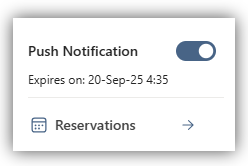
When enabled, a subscription is created for each user to track activities such as event creation, updates, and deletions on their calendar. Any changes are automatically sent to OfficePlace, allowing the system to update calendar data without manual intervention.
Step 5: Verify Override Exchange Calendar Read Permission Setting
This setting determines how calendar visibility is handled in Group Calendar compared to Outlook (Exchange).
Navigate to Tenant Management and click the Action button for your tenant to open the management panel.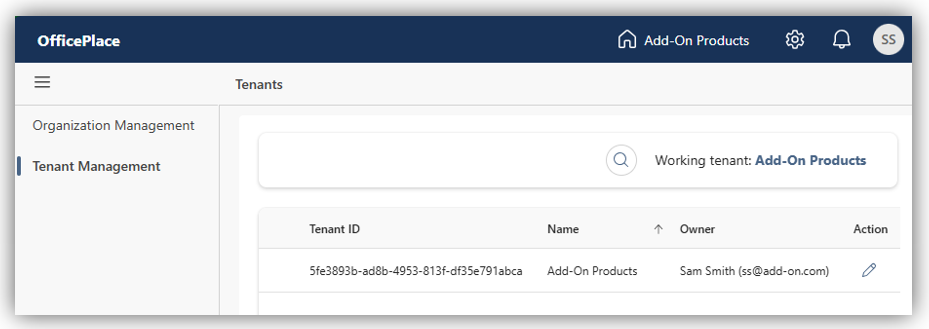
On the Integration configuration tab, you can see whether the Override Exchange Calendar Read Permission setting is enabled or not. Note that you cannot enable or disable this setting.
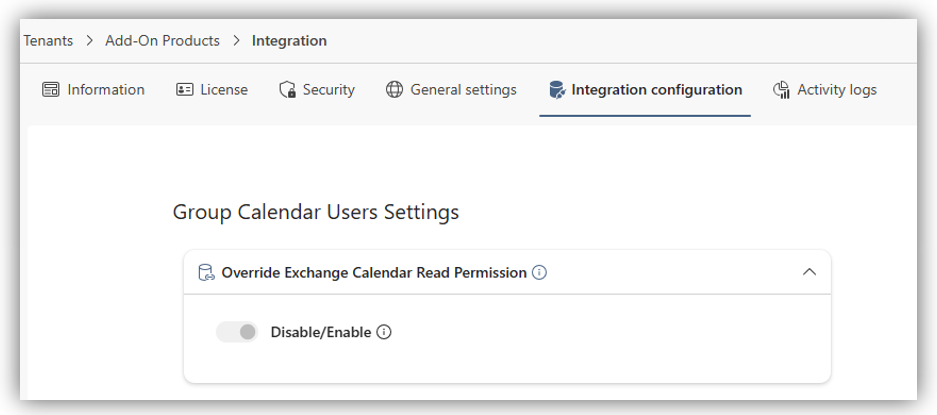
If Override Exchange Calendar Read Permission is enabled, OfficePlace does not strictly follow the calendar permissions as defined in Outlook (Exchange). In this mode, OfficePlace automatically treats the following permission levels as Reviewer (Full details):
- None
- Reviewer (Free/Busy)
- Reviewer (Limited Details)
- Unknown
As a result, the logged-in user in the Group Calendar may still view (but not edit) full event details of other users, even if those calendars are shared with them at levels lower than Reviewer (Full details) in Outlook.
If this setting is not enabled, the logged-in user will only see event details of other users according to their actual permissions configured in Outlook (Exchange).
After completing the steps above, group calendar users can log in to OfficePlace Group Calendar using SSO with their Microsoft account to manage multiple colleagues’ calendars in one place. For more information, refer to the OfficePlace Group Calendar User Guide.
Properties
Applies to: OfficePlace and Group Calendar
Reference: TFS #461746
Knowledge base ID: 0354
Last updated: Apr 08, 2026
Was this article helpful?
That’s Great!
Thank you for your feedback
Sorry! We couldn't be helpful
Thank you for your feedback
Feedback sent
We appreciate your effort and will try to fix the article