This document provides a brief overview of the new functionality in OfficePlace Group Calendar version 2026-05. For more detailed information, please refer to the user guides.
- Setup wizard on first login
- Highlight ongoing appointments
- Hide the left pane for more calendar space
- Improved filter options in List View
- Excel export from List View
Setup wizard on first login
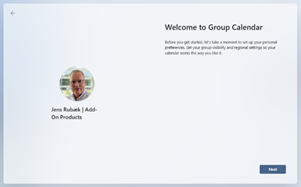
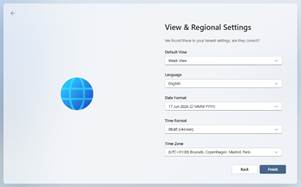
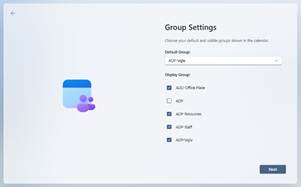
OfficePlace Group Calendar now includes a small setup wizard that is shown the first time a new user logs in. The wizard helps the user complete the required Group Calendar setup step by step, so they can get started more easily.
The wizard gives new users a clearer first experience. It guides them through the required setup choices before they start using Group Calendar.
Highlight ongoing appointments
OfficePlace Group Calendar can now highlight ongoing appointments directly in the calendar view. When the option is enabled, active appointments are shown with a green highlight. This helps users quickly see what is happening right now, without checking the start and end time for each appointment.
This is useful in shared calendars with many appointments during the day. For example, reception teams, facility staff, and other users can quickly identify the appointment that is currently active, without opening each item.
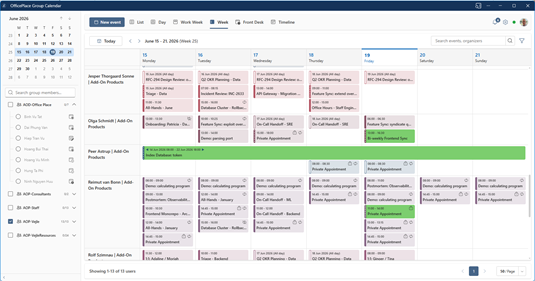
Example: ongoing appointments are highlighted in green in the calendar view.
The setting can be enabled under Settings, General, using the new option Highlight ongoing appointments.
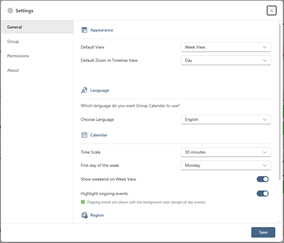
Example: the General settings page with the new Highlight ongoing appointments option.
Hide the left pane for more calendar space
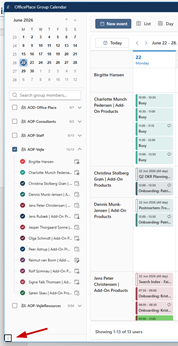
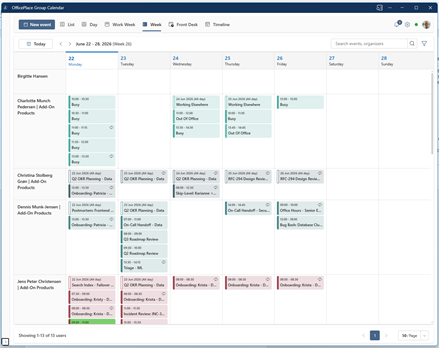
Users can now hide the left pane in OfficePlace Group Calendar. This gives more space for the calendar itself and makes it easier to view appointment details, especially on smaller screens or when many appointments are shown.
This is useful when users want a cleaner calendar view and need more room to focus on the daily or weekly schedule. The left pane can be shown again when the user needs access to the navigation options.
Improved filter options in List View
The filter function in List View has been improved, making it easier for users to narrow down the appointments they want to see. Users can apply the available filter options to focus on the most relevant calendar data before reviewing or exporting the result.
This gives users a better overview when working with many appointments. It also helps them find the right information faster, especially when List View is used for planning, follow-up, or reporting.
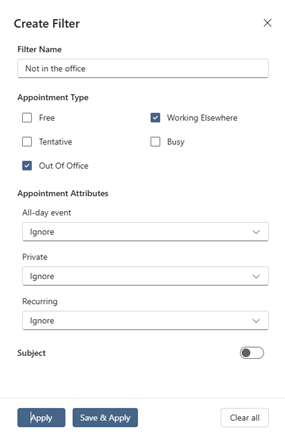
For example, a user can filter the calendar to see who is not present in the office on a given day. This can help teams get a quick overview of absences, off-site work, or other appointments that affect who is available at the office.
Excel export from List View
OfficePlace Group Calendar now supports Excel export from List View. Users can first use the filter options in List View to narrow down the appointments they want to work with. After selecting Export, they can also define a date range using a from and to date before creating the Excel file.
This gives users a flexible way to create reports based on the appointments they need, without exporting more data than necessary. The exported Excel file can then be used for reporting, review, planning, or sharing with others.
The Export function is available from the toolbar in the top-right corner of List View.
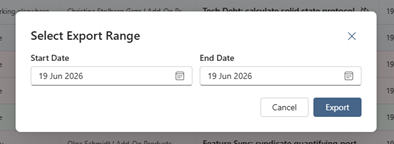
Example: after selecting Export, a dialog is shown where the user can set the date range.
For example, when planning vacation periods, a user can filter the List View to show the relevant appointments and then export only the selected date range to Excel. This makes it easier to review availability, coordinate planning, or share an overview with colleagues.
Was this article helpful?
That’s Great!
Thank you for your feedback
Sorry! We couldn't be helpful
Thank you for your feedback
Feedback sent
We appreciate your effort and will try to fix the article