This document provides a brief overview of the new functionalities in Workspace, Digital Sign Client, and DS Service. For more in-depth information, please refer to the user guides.
It is structured into three sections: Workspace Booking app, Digital Sign Client, and DS Service, with each section offering detailed information on the specific features of that component.
Workspace Booking app
Renamed "Confirm" to "Check in"
The function previously called "confirm" ensured organizers still required reserved resources, otherwise, the resources would be released after a set time. It is now renamed "check-in," as customers felt this better describes its purpose.
Both in the Backend and Workspace Booking app, we've adopted the new name and enhanced check-in options, allowing control over where check-ins can be performed.
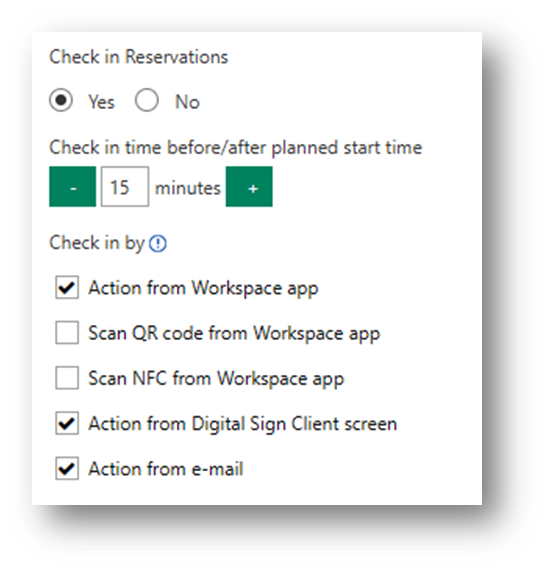
The check-in functionality can be configured for each resource, providing flexibility. In the Workspace app, the Check-in feature is available in the My Reservations view. Users can complete the check-in by swiping to the right.
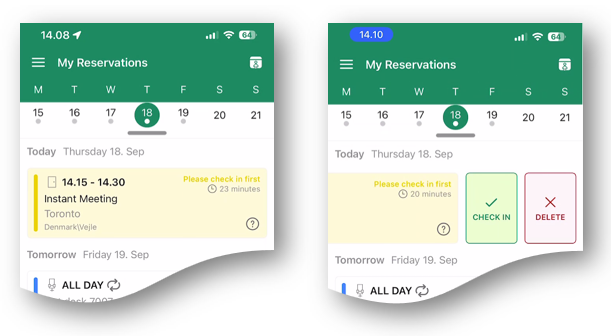
The check-in process may also be configured to require your presence, necessitating that you scan a QR code or read an NFC tag located at the actual resource.
Added support for NFC tags as alternative to QR codes
We have introduced a new way to make reservations or do the check-in. For some time, it has been possible to scan a QR code to quickly identify a resource, but now, similar to QR codes, we have added support for NFC tags.
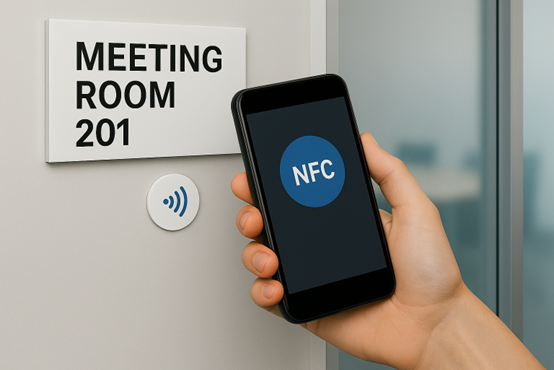
How to prepare the NFC tag
This means you can upload the ID of a resource, which can then be read with the Workspace Booking app.
NFC tags are available in many different formats and appearances, making them easy to integrate on walls or doors for meeting rooms, or even on desks. Search on the internet for NFC tag stickers to find a lot of different NFC tags that can be used
The Workspace Booking app can be used as a tool to “write” NFC tags, which can then be read by others.
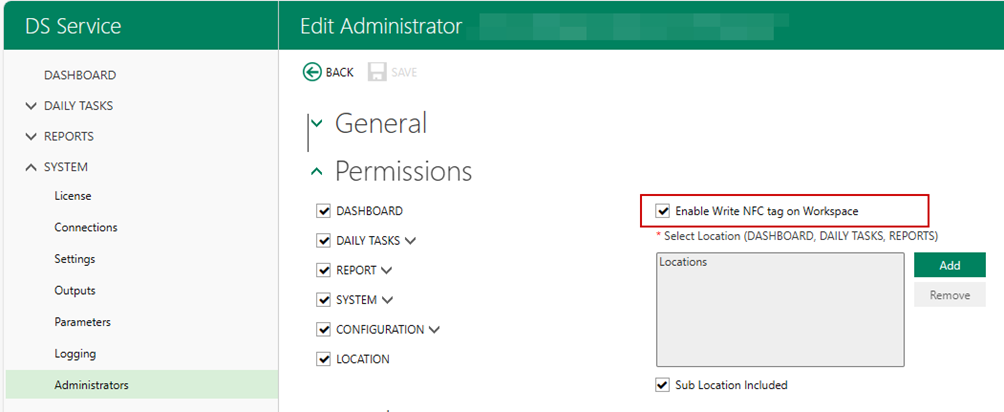
Under the SYSTEM menu, Administrator, you give an administrator permission to “write” NFC tags, using this Workspace app, Enable Write NFC tag on Workspace
After this, the Admins Workspace app will gain a new function in the app, enabling them to write NFC tags that can be used by others.
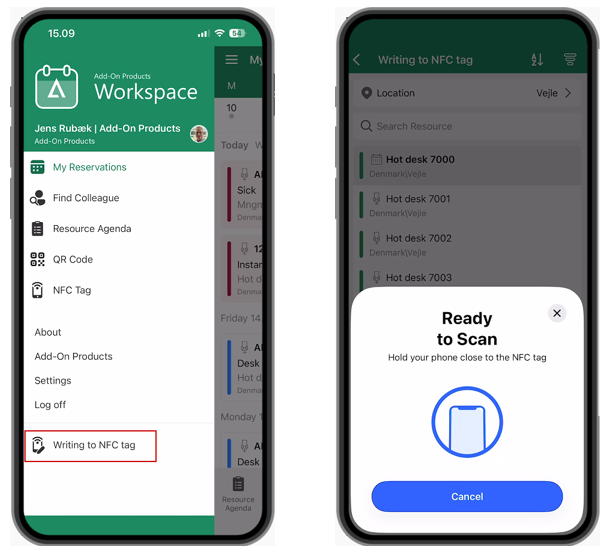
Open this function and choose a resource from the list. Use your phone to write the NFC tag, then you'll be ready for other users to scan the NFC tag on the meeting room, desk, or any other equipment that can be reserved through the Workspace Booking app.
How to read the NFC tag
Once you've written the NFC tag, you can let users start using the new tag. First, add the Workspace.ShowNFCtag parameter under SYSTEM, Parameters and set it to TRUE. Doing this will enable the NFC Reader feature in the Workspace Booking app, which will appear as shown below:
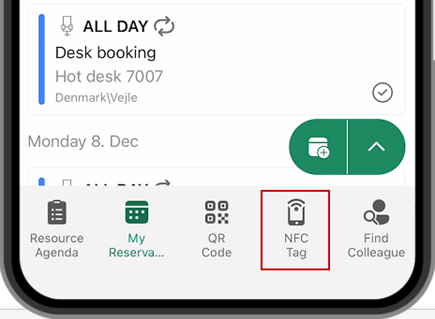 When a user tap on NFC Tag function, the NFC reader will activate and quickly read the associated resources. It will then be ready to either make a new reservation or perform check-in, depending on the current situation. In general, reading an NFC tag operates similarly to scanning a QR code; however, NFC tags typically offer enhanced security due to their greater resistance to duplication and reproduction compared to QR codes.
Reservation time blocks
Imagine you have some resources that can only be booked for specific time blocks, let’s say desks can be reserved either as Morning, afternoon or the entire day. Now you can define these blocks, so it is easy from the Workspace booking app to quickly reserve the resources in these blocks.
Under CONFIGURATION, Resource Types, you can define the blocks, like this:
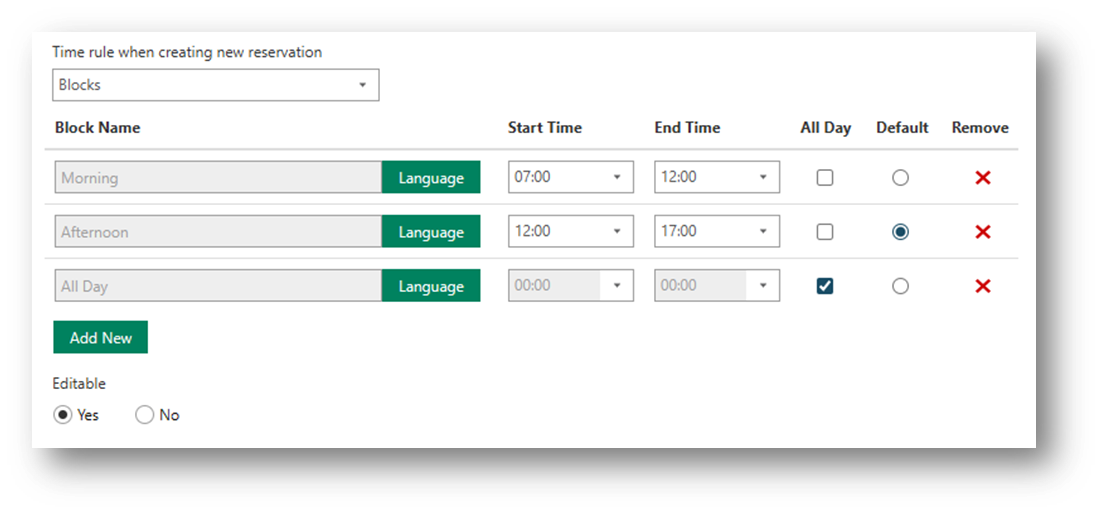
When the new time rule has been configured, then the Workspace app will show the following interface when doing a new reservation
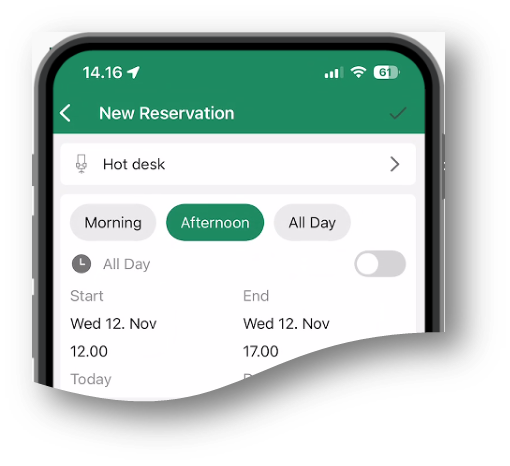
Clicking the quick button updates your reservation’s start and end times.
Note: Time blocks won't apply if you book through Outlook.
Extend reservation from Workspace
To quickly extend a current reservation in the Workspace app, open your booking and select one of the options to extend the reservation if you need more time, such as during a meeting. The available extension times are set in Workspace Settings under Date and Time > Time Steps (minutes) and are only offered if no other reservations conflict.
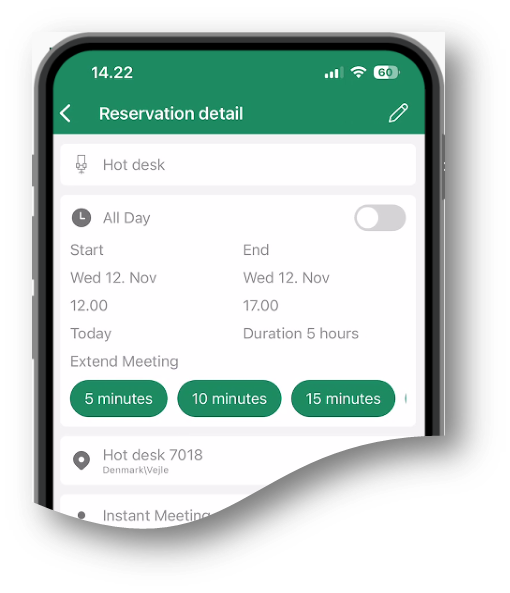
Selecting one of the Extend Reservation buttons will promptly extend your current reservation.
Displaying a Picture of the Resource
When you create a new reservation or open an existing one, it is now possible to view a picture of the selected resource.

Or by swiping the floor map picture on an existing reservation.
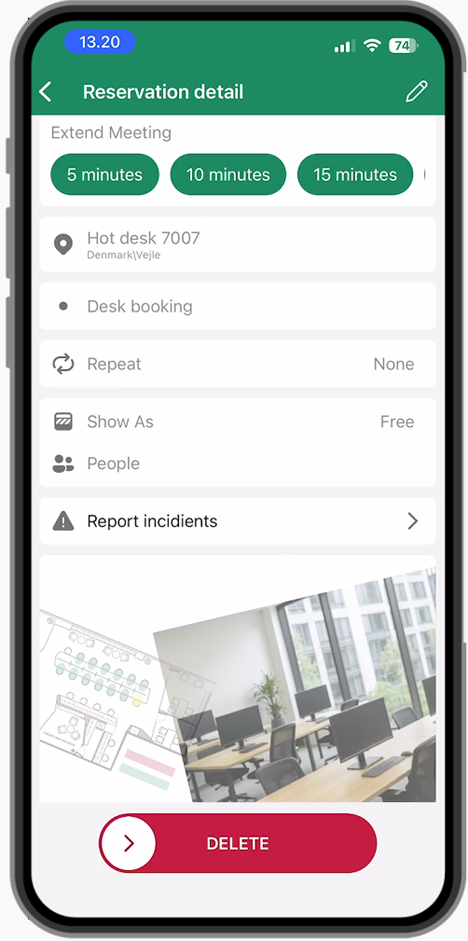
Resource Agenda
The Floormap in the Resource Agenda now displays color coding to represent resource occupancy. Previously, the Floormap functioned only as a tool for selecting a resource.
Language Support Updates in Workspace App
The Workspace app has undergone modifications to its language support. Dutch language support has been newly incorporated, enhancing the app’s accessibility for Dutch-speaking users. At the same time, Chinese language support has been removed from the available options.
As a result of these changes, the Workspace app now supports the following languages:
- German
- Danish
- French
- Dutch
This update ensures a more focused language offer, tailored to the needs of the primary user base.
Digital Sign Client
New sample template for Qbic TD360 device
We have created a new template specifically designed for the Qbic TD360 model, with dimensions of 480x480 pixels. This template ensures optimal display and compatibility for this device.
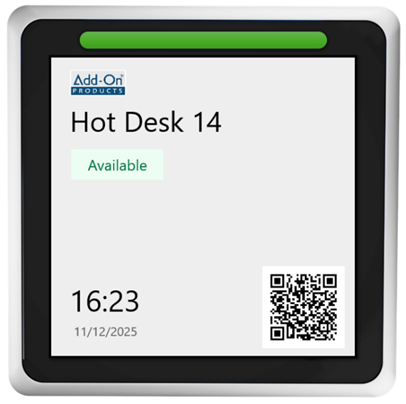
Dimension 90 mm x 90 mm x 13mm
Reservation Kiosk
It is now possible to manually select which resources will be available on the Kiosk, rather than displaying all resources from the chosen location by default, as was previously required on the Reservation Kiosk.
The system now also supports virtual resources on the Reservation Kiosk.
E-paper devices
E-paper avoids unnecessary screen updates to reduce power consumption.
DS Service
Flexible Admin Permissions and Account Renaming
The new feature lets administrators set permissions for individual sub menu Functions, not just entire Menu Sections. This gives more control and flexibility, allowing each admin user to have access only to the functions they need.
Under SYSTEM, Administrators, it is now possible to set permission to every sub menu function in the system like this:
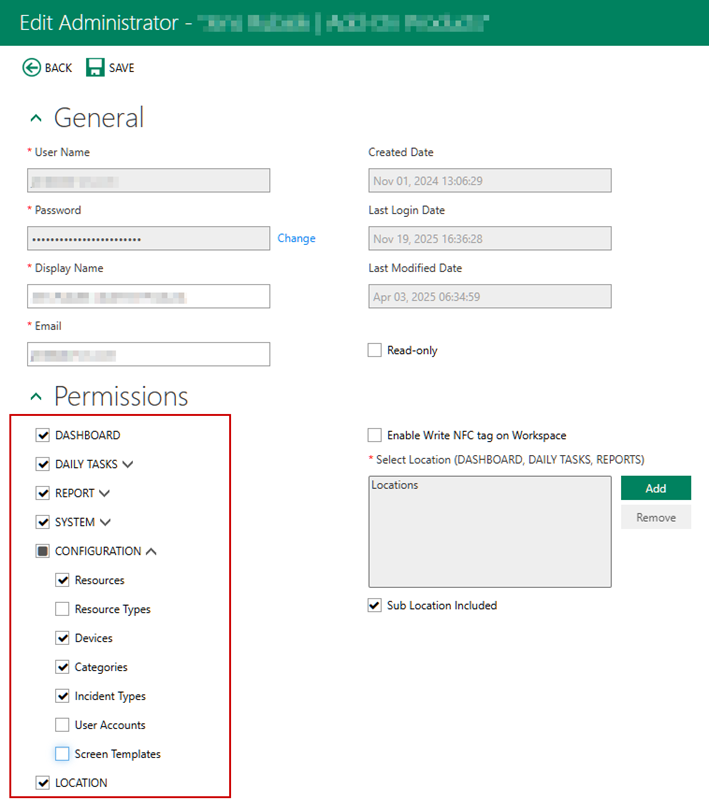
Furthermore, the default Admin account, essential for system operation and automatically created during installation, can now be renamed as required. In earlier versions, renaming was restricted, which some perceived as a security vulnerability.
Added functionality to hide/show columns and sorting in DAILY TASKS, Reservations
You can now choose which columns to show or hide in the overview of DAILY TASKS, Reservations. This allows you to customize the display, so you only see the information relevant to your work. This update brings column visibility options in these areas in line with the rest of the system. This feature makes it easier to maintain a clear overview and remove unnecessary data from the screen, creating a more streamlined and efficient workflow. Right-click the column headers to choose which columns should be visible.
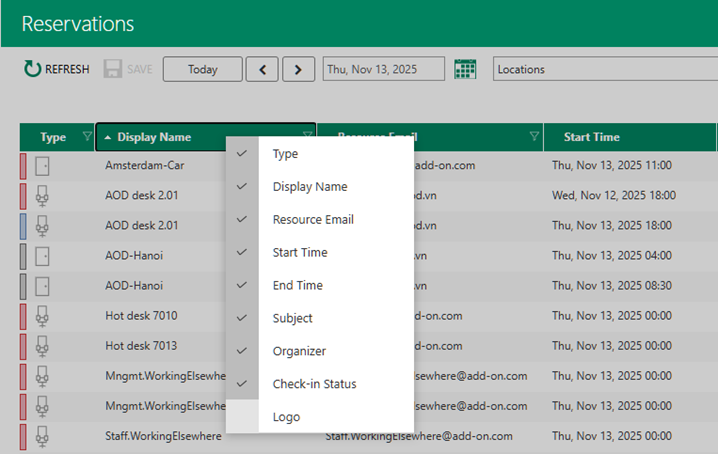
It is now also possible to sort the list simply by clicking on the column header. When a column is sorted, a small arrow will appear in the column header to indicate that sorting is active for that column.
Changed status wording from "In progress" to "Ongoing"
The status label has been updated from In progress to Ongoing. This change ensures consistent terminology with Resource Central, making it easier to understand status indicators throughout the system.

Booked:
Indicates a resource is reserved for a specific time.
Ongoing:
Shows that an activity or reservation is currently in progress.
Closed/Past:
Marks resource as closed or events that have already ended.
Tentative:
Represents a reservation that is not yet confirmed.
Not Checked In:
Highlights that the organizer has not yet confirmed their presence.
Buffer Time:
Shows time set aside between bookings to allow for cleaning, setup, or transition.
Added confirmation message box in Booking Manager, when moving reservations.
We have introduced a confirmation message box in the Booking Manager, which appears when you attempt to move a reservation using drag and drop with the mouse. This feature has been added to ensure that any changes to reservations are made intentionally, helping to prevent accidental modifications when relocating bookings.
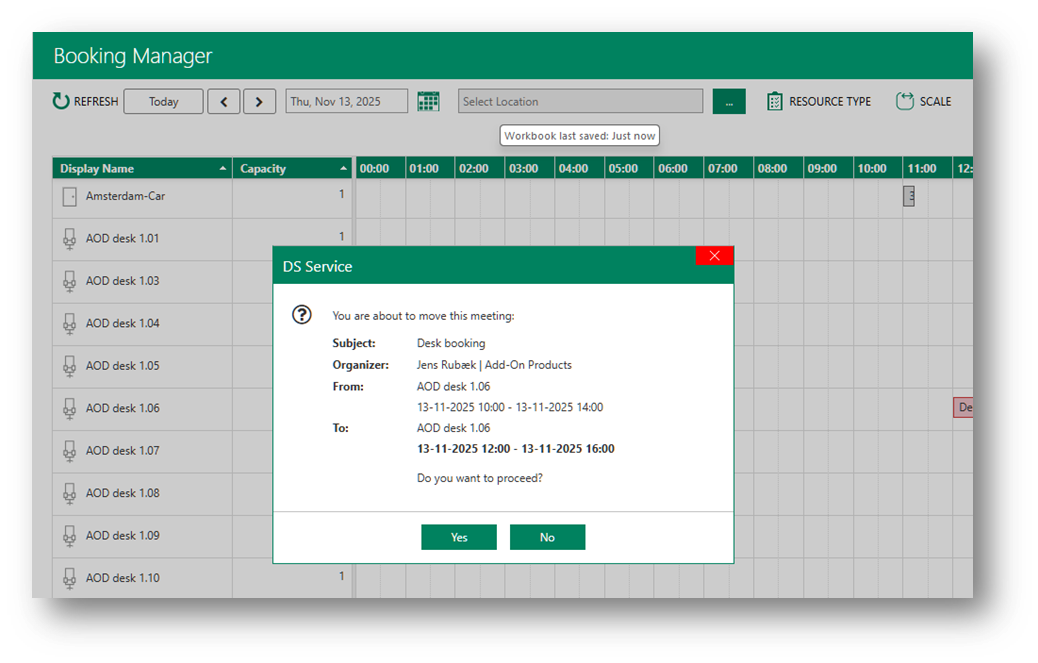
Changes made using the drag-and-drop feature are highlighted in bold in the dialog.in this case the reservation has been moved from a start time at 10:00 to a start time at 12:00
A new SCALE function has also been introduced, enabling users to display either WORK TIME or ALL DAY views according to their needs. Furthermore, you can now adjust the time scale between 15, 30, or 60-minute intervals, allowing for greater flexibility and customization in how your schedule is visualized and managed.
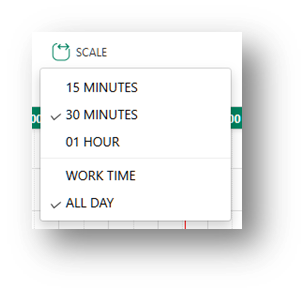
The system defines WORK TIME as 7:00 am to 5:00 pm, and this setting is fixed.
Improve the use of incident types
The incident management system now allows incidents to be assigned directly to specific administrators based on both location and incident type. Incident can be added to the system from either the Workspace Booking App or the Digital Sign Client – door sign mode.
Administrators can add comments for organizers and choose to receive email notifications when new incidents are reported.
The new DAILY TASKS, Incidents function displays the incidents relevant to each administrator, while admins with View All Incident permission have access to all incidents across locations. The incident details dialog has been redesigned to make it easier to update status and add notes. And it is now possible for an Admin to create new Incidents directly from this interface.
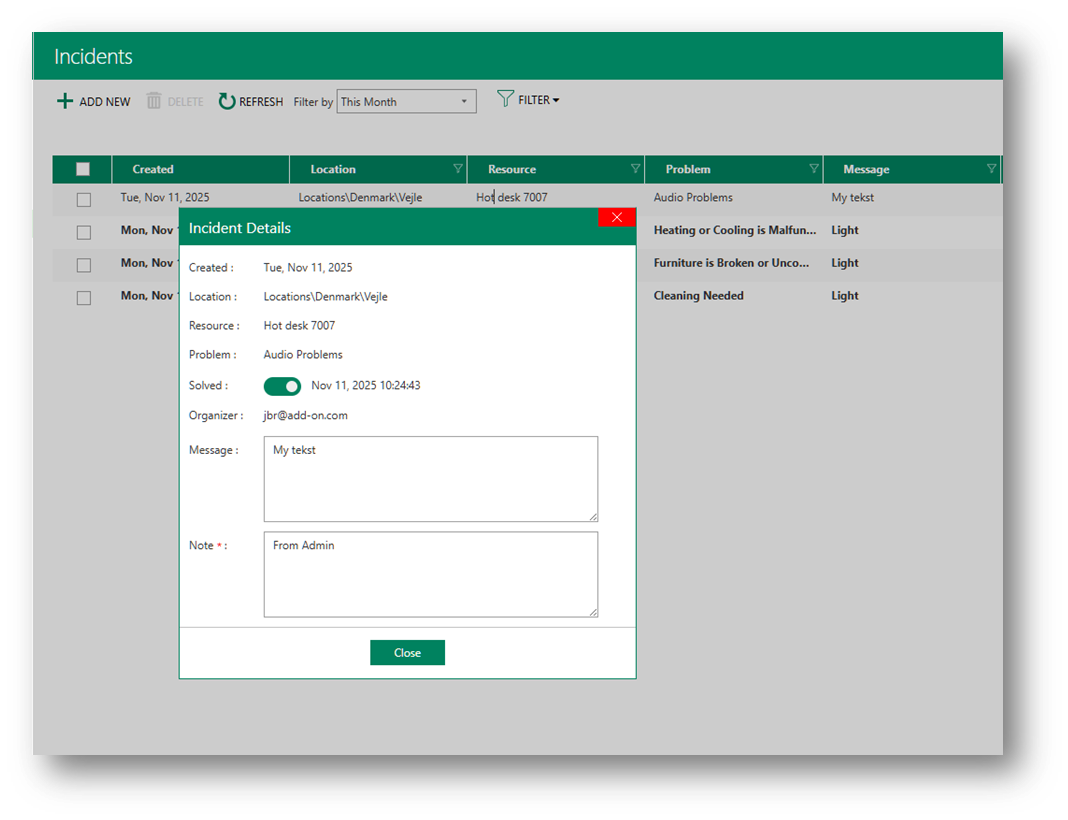
Organizers can now receive confirmation emails when incidents are registered. The incident report and overview have also been improved, with better filtering, layout, and visibility of notes.
For each Incident Type, it is now possible to assign one or more admins directly from the SYSTEM Administrators interface. This allows you to specify which administrators are responsible for managing specific types of incidents.
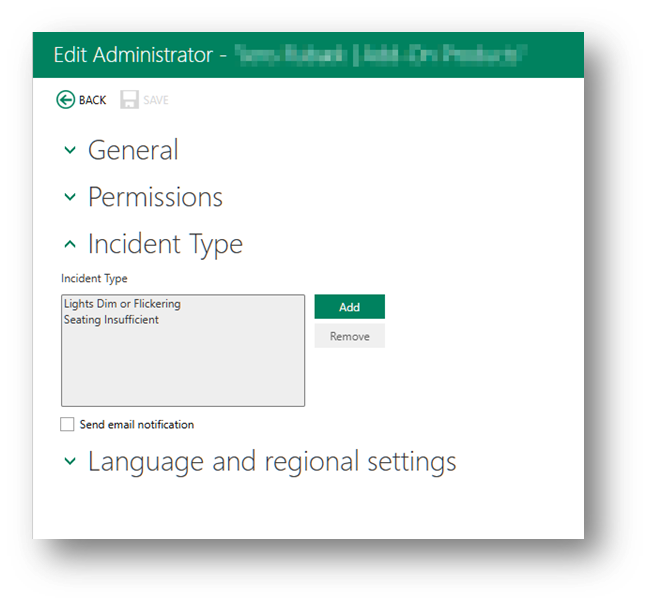
Additionally, for each administrator, it is now possible to specify whether they should receive an email notification when an incident for which they are responsible is reported. This setting provides greater flexibility and ensures that relevant administrators are promptly informed about new incidents assigned to them.
Expanded Translation Support for email content
The reservation briefing email is now available in English, Danish, French, German and Dutch. This enhancement allows users to receive their reservation briefing emails in the language that suits them best. To select the preferred language for reservation briefing emails, navigating to SYSTEM, Settings, Email Configuration. Here, you can easily choose the desired language, ensuring that users receive communications tailored to their linguistic preferences.
By providing translated reservation briefings, the system ensures a more inclusive and user-friendly experience for a broader range of users across different regions.
QR code exporting is now available, allowing Word Mail Merge to generate personalized QR label designs.
You can now export QR codes along with associated resource properties, making it straightforward to use this data with Microsoft Word’s Mail Merge feature to design and produce custom QR code labels.
Navigate to CONFIGURATION, Resources, select SHOW QR CODE, and choose Export Data. This function enables you to generate and personalize resource labels, or any other documents requiring QR codes, with ease.
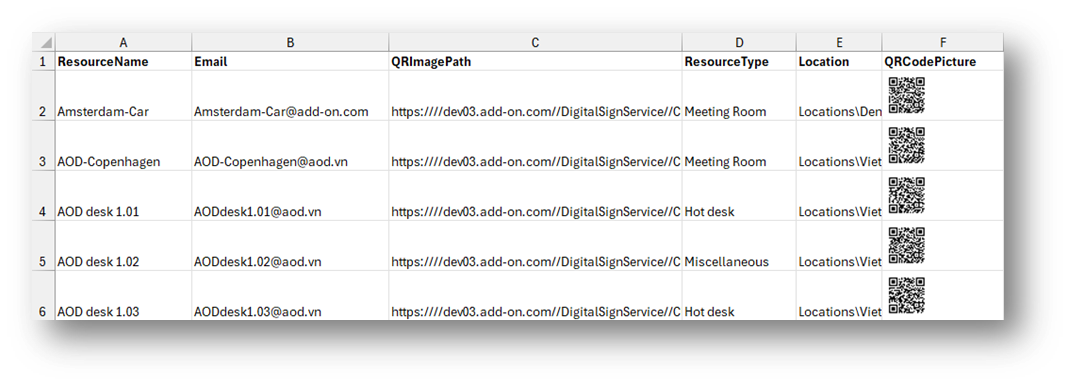
REMARK: The formula “=IMAGE(C2)” should be entered manually in column E. Note that this formula only works in Microsoft Office Excel 365; older versions like Excel 2019 do not support it.
Rotate Floor Map for Flexible Screen Orientation
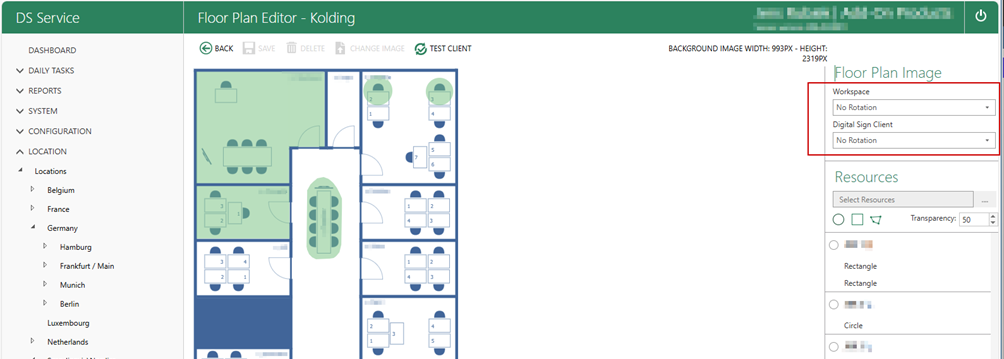
The floor map can be rotated to suit different needs. In some cases, rotating the floor map image for Workspace or Digital Sign Client is helpful, as screen orientation may vary.
Sample
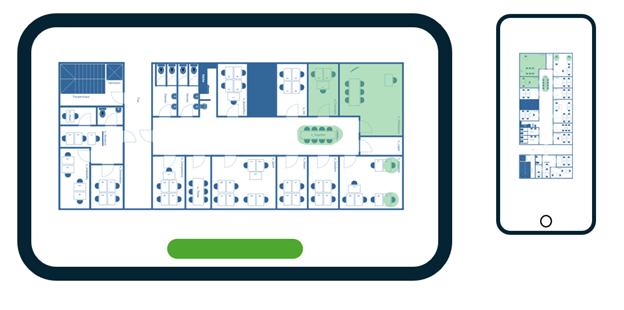
To maintain the orientation then please go to LOCATION, FLOOR PLAN, and edit the setting.
Was this article helpful?
That’s Great!
Thank you for your feedback
Sorry! We couldn't be helpful
Thank you for your feedback
Feedback sent
We appreciate your effort and will try to fix the article