This guide walks you through creating an Entra ID application registration and configuring Exchange Online RBAC so that Office Placeace can read and write calendar entries and send emails — scoped only to the mailboxes you specify.
All steps must be completed in the same PowerShell session so that variables carry over between sections.
Administrator rights required
You must sign in with a Global Administrator or Exchange Administrator account. Add-On Products is not responsible for the consequences of improper use.
Understanding the setup: Entra ID permissions vs. Exchange RBAC
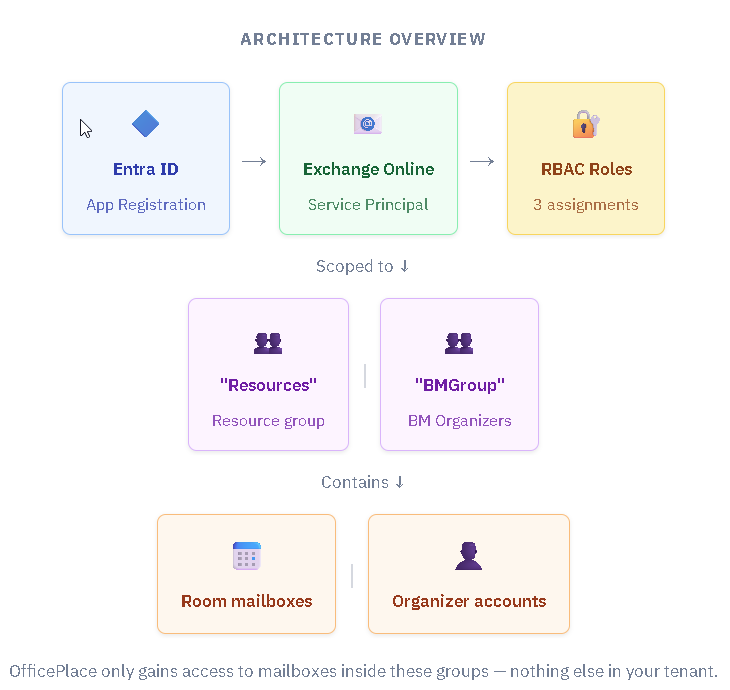
This setup uses two separate permission layers that work together:
| Layer | What it controls | Configured in |
|---|---|---|
| Microsoft Graph API permissions | What the app is allowed to do (read users, read/write calendars, send mail) | Entra ID — Step 3 |
| Exchange Online RBAC | Which mailboxes the app can access — scoped to specific security groups | Exchange Online — Step 4 |
Without RBAC, the Graph permissions would apply tenant-wide. RBAC restricts access to only the two groups you define in Step 2.
Prerequisites
Before starting, confirm all of the following:
- PowerShell 7 is installed
- You have Global Administrator or Exchange Administrator access in your Microsoft 365 tenant
- You have created a mail-enabled security group for your resource mailboxes (e.g. meeting rooms) — note the exact name
- You have created a mail-enabled security group for your Booking Manager (BM) organizer accounts — note the exact name
- Both groups are flat — all members must be direct members, not inside nested sub-groups
- You have the UPN (email address) of a dedicated service account for Exchange delegated access
Flat groups only
Exchange Online RBAC does not traverse nested group memberships. If a mailbox is inside a sub-group rather than a direct member of the top-level group, OfficePlace will not be able to access it.
Step 1 — Prepare the PowerShell environment
The block below checks whether each required module is installed and installs it if missing.
# Install required modules if not already present
if(-not (Get-InstalledModule Microsoft.Graph.Authentication)) {
    Install-Module Microsoft.Graph.Authentication -Scope CurrentUser -Force
}
if(-not (Get-InstalledModule Microsoft.Graph.Applications)) {
    Install-Module Microsoft.Graph.Applications -Scope CurrentUser -Force
}
if(-not (Get-InstalledModule Microsoft.Graph.Identity.DirectoryManagement)) {
    Install-Module Microsoft.Graph.Identity.DirectoryManagement -Scope CurrentUser -Force
}
if(-not (Get-InstalledModule Microsoft.Graph.Identity.signins)){
    Install-Module Microsoft.Graph.Identity.signins -Scope CurrentUser -Force
}
if(-not (Get-InstalledModule Microsoft.Graph.Users)){
    Install-Module Microsoft.Graph.Users -Scope CurrentUser -Force
}
if(-not (Get-InstalledModule ExchangeOnlineManagement)) {
    Install-Module ExchangeOnlineManagement -Scope CurrentUser -Force
}

# Import all modules into the current session
Import-Module Microsoft.Graph.Authentication
Import-Module Microsoft.Graph.Applications
Import-Module Microsoft.Graph.Identity.DirectoryManagement
Import-Module Microsoft.Graph.Identity.signins
Import-Module Microsoft.Graph.Users
Import-Module ExchangeOnlineManagement
Step 2 — Define script variables
Edit these five values to match your environment before running anything else. They are used by all subsequent steps.
| Variable | Example value | What it represents |
|---|---|---|
$AppName | "OfficePlace app access" | Display name for the new Entra ID application |
$SecretDuration | 120 | Client secret validity in months (120 = 10 years) |
$ExchangeResourceGroupName | "Resources" | Mail-enabled security group containing your room/resource mailboxes |
$ExchangeOrganizerBMGroupName | "BMGroup" | Mail-enabled security group for Booking Manager (BM) organizer accounts |
$ServiceAccountUPN | "svc@company.com" | UPN of the dedicated service account for Exchange delegated access |
# ── Edit these values before running ────────────────────────────────────────
$AppName                     = "OfficePlace app access"
$SecretDuration              = 120            # months
$ExchangeResourceGroupName   = "Resources"    # mail-enabled group for resource mailboxes
$ExchangeOrganizerBMGroupName = "BMGroup"     # mail-enabled group for BM organizer accounts
$ServiceAccountUPN           = "serviceaccount@company.com"
# ─────────────────────────────────────────────────────────────────────────────
Step 3 — Create the Entra ID application
This step connects to Microsoft Graph, creates the app registration, adds a client secret, grants the required API permissions, and saves the resulting credentials to a text file in your Downloads folder.
The script checks if an application with the same name already exists. If one is found, it exits and asks you to delete the existing app or choose a different name before re-running.
###############################################################################
# Connect to Microsoft Graph with required scopes
###############################################################################
Connect-MgGraph -Scopes "Application.ReadWrite.All","User.Read.All","Domain.Read.All",
    "DelegatedPermissionGrant.ReadWrite.All","AppRoleAssignment.ReadWrite.All"

Get-MgContext
Write-Host "Tenant Name: " (Get-MgDomain | Where-Object {$_.IsInitial -eq $true}).id

###############################################################################
# Create the Entra ID application (exits if name already exists)
###############################################################################
$ExistingApp = Get-MgApplication -Filter "startswith(displayName,'$AppName')"
If ($ExistingApp) {
    Write-Warning "Application already exists — exiting script"
    Write-Warning "Delete application $($ExistingApp.AppId) or choose a different AppName"
    break
} Else {
    $App = New-MgApplication -DisplayName $AppName
}
$APPObjectID = $App.Id

###############################################################################
# Add the current user as Owner of the application
###############################################################################
$User     = Get-MgUser -UserId (Get-MgContext).Account
$NewOwner = @{ "@odata.id" = "https://graph.microsoft.com/v1.0/directoryObjects/{$($User.ID)}" }
New-MgApplicationOwnerByRef -ApplicationId $APPObjectID -BodyParameter $NewOwner

###############################################################################
# Create a client secret valid for $SecretDuration months
###############################################################################
$passwordCred = @{
    "displayName" = "ClientSecret"
    "endDateTime" = (Get-Date).AddMonths(+$SecretDuration)
}
$ClientSecret = Add-MgApplicationPassword -ApplicationId $APPObjectID -PasswordCredential $passwordCred

###############################################################################
# Configure redirect URIs
###############################################################################
$RedirectURI = @("https://admin.officeplace.global/")
$params      = @{ RedirectUris = @($RedirectURI) }
$Web         = @{
    implicitGrantSettings = @{
        enableIdTokenIssuance     = $true
        enableAccessTokenIssuance = $true
    }
}
Update-MgApplication -ApplicationId $APPObjectID -Spa $params -Web $Web

###############################################################################
# Grant API permissions:
#   - Microsoft Graph: GroupMember.Read.All (Application)
#   - Microsoft Graph: User.Read.All (Application)
#   - Exchange Online: Exchange.Manage (Delegated)
###############################################################################
$requiredGrants = New-Object -TypeName System.Collections.Generic.List[Microsoft.Graph.PowerShell.Models.MicrosoftGraphRequiredResourceAccess]

# Microsoft Graph permissions
$graphAccess = New-Object Microsoft.Graph.PowerShell.Models.MicrosoftGraphRequiredResourceAccess
$graphAccess.ResourceAppId = "00000003-0000-0000-c000-000000000000"
$graphAccess.ResourceAccess += @{ Id = "98830695-27a2-44f7-8c18-0c3ebc9698f6"; Type = "Role" }  # GroupMember.Read.All
$graphAccess.ResourceAccess += @{ Id = "df021288-bdef-4463-88db-98f22de89214"; Type = "Role" }  # User.Read.All
$requiredGrants.Add($graphAccess)

# Exchange Online delegated permission
$exoAccess = New-Object Microsoft.Graph.PowerShell.Models.MicrosoftGraphRequiredResourceAccess
$exoAccess.ResourceAppId = "00000002-0000-0ff1-ce00-000000000000"
$exoAccess.ResourceAccess += @{ Id = "ab4f2b77-0b06-4fc1-a9de-02113fc2ab7c"; Type = "Scope" }  # Exchange.Manage
$requiredGrants.Add($exoAccess)

Update-MgApplication -ApplicationId $APPObjectID -RequiredResourceAccess $requiredGrants

###############################################################################
# Create service principal (if it does not already exist)
###############################################################################
$Principal = Get-MgServicePrincipal -Filter "appId eq '$($App.appId)'"
if (-not $Principal) {
    Write-Host "Creating service principal for $AppName"
    $Principal = New-MgServicePrincipal -AppId $App.appId -Description $App.DisplayName
}
Write-Host "Service Principal: '$($Principal.displayName)' (appId: $($Principal.appId))"

###############################################################################
# Grant admin consent for Microsoft Graph application permissions
###############################################################################
$GraphSP = Get-MgServicePrincipal -Filter "displayName eq 'Microsoft Graph'"
New-MgServicePrincipalAppRoleAssignedTo -ServicePrincipalId $Principal.Id -PrincipalId $Principal.Id `
    -ResourceId $GraphSP.id -AppRoleId "98830695-27a2-44f7-8c18-0c3ebc9698f6"  # GroupMember.Read.All
New-MgServicePrincipalAppRoleAssignedTo -ServicePrincipalId $Principal.Id -PrincipalId $Principal.Id `
    -ResourceId $GraphSP.id -AppRoleId "df021288-bdef-4463-88db-98f22de89214"  # User.Read.All

# Grant user consent for delegated Exchange.Manage permission
$ExoSP              = Get-MgServicePrincipal -Filter "displayName eq 'Office 365 Exchange Online'"
$ServiceAccountUser = Get-MgUser -UserId $ServiceAccountUPN
$consentParams = @{
    ClientId    = $Principal.Id
    ConsentType = "Principal"
    ResourceId  = $ExoSP.id
    Scope       = "Exchange.Manage"
    PrincipalId = $ServiceAccountUser.Id
}
New-MgOauth2PermissionGrant -BodyParameter $consentParams | Format-List Id, ClientId, ConsentType, ResourceId, Scope

###############################################################################
# Save credentials to Downloads folder and open in Notepad
###############################################################################
$ResultFile = "" + (New-Object -ComObject Shell.Application).Namespace('shell:Downloads').Self.Path + "\" + $AppName + ".txt"
$resultset = @"
Tenant ID:        $((Get-MgOrganization).Id)
Tenant Name:      $((Get-MgDomain | Where-object {$_.IsInitial -eq $true}).id)
App principal ID: $($app.AppID)
App Secret:       $($clientSecret.SecretText)
"@
$resultset | Out-File -FilePath $ResultFile
Invoke-Item $ResultFile
Write-Host "Credentials saved to: $ResultFile"
Step 4 — Configure RBAC in Exchange Online
What this step does
Exchange Online uses its own permission layer — RBAC (Role-Based Access Control) — to control which mailboxes an application can access. This step does two things:
- Registers your Entra ID application as a Service Principal inside Exchange Online. Exchange maintains its own registry of trusted apps, separate from Entra ID, so this creates an Exchange-side identity for the app.
- Creates three scoped role assignments that grant the app access only to mailboxes in the two groups defined in Step 2 — nothing else in your tenant.
Run this in the same PowerShell session as Steps 1–3. The variables$Principal,$ExchangeResourceGroupName, and$ExchangeOrganizerBMGroupNamemust still be loaded in memory.
The three role assignments
| # | Role granted | Scoped to | Purpose |
|---|---|---|---|
| 1 | Application Calendars.ReadWrite | $ExchangeResourceGroupName (e.g. "Resources") | Read and write calendar entries on resource mailboxes (meeting rooms) |
| 2 | Application Mail.Send | $ExchangeResourceGroupName (e.g. "Resources") | Send booking confirmation and update emails from resource mailboxes |
| 3 | Application Calendars.ReadWrite | $ExchangeOrganizerBMGroupName (e.g. "BMGroup") | Read and write calendar entries for Booking Manager (BM) organizer accounts |
# ── Step 4: Configure RBAC permissions for Exchange Online ───────────────────
# Must run in the SAME session as Steps 1–3.
# Variables required: $Principal, $ExchangeResourceGroupName, $ExchangeOrganizerBMGroupName
# ─────────────────────────────────────────────────────────────────────────────

# Connect to Exchange Online (separate connection from Microsoft Graph above)
Connect-ExchangeOnline

# Register the Entra ID application as a Service Principal inside Exchange Online.
# This creates an Exchange-side identity — separate from the Entra ID app itself.
$RBACPrincipal = New-ServicePrincipal `
    -AppId       $Principal.AppId `
    -ObjectId   $Principal.Id `
    -DisplayName "EXO Serviceprincipal $($Principal.DisplayName)"

# Assignment 1: Calendar read/write on RESOURCE mailboxes
# Scoped to $ExchangeResourceGroupName — only mailboxes that are direct members of this group.
New-ManagementRoleAssignment `
    -Name                "Resource Central Resource CalendarAccess" `
    -App                 $RBACPrincipal.AppId `
    -Role                "Application Calendars.ReadWrite" `
    -RecipientGroupScope $ExchangeResourceGroupName

# Assignment 2: Mail send on RESOURCE mailboxes
# Scoped to $ExchangeResourceGroupName — allows sending booking emails from resource mailboxes.
New-ManagementRoleAssignment `
    -Name                "Resource Central Resource Mail" `
    -App                 $RBACPrincipal.AppId `
    -Role                "Application Mail.Send" `
    -RecipientGroupScope $ExchangeResourceGroupName

# Assignment 3: Calendar read/write for BOOKING MANAGER organizer accounts
# Scoped to $ExchangeOrganizerBMGroupName — separate from the resource mailboxes above.
New-ManagementRoleAssignment `
    -Name                "Resource Central BM CalendarAccess" `
    -App                 $RBACPrincipal.AppId `
    -Role                "Application Calendars.ReadWrite" `
    -RecipientGroupScope $ExchangeOrganizerBMGroupName
Verify the assignments were created
Run the following command to confirm all three role assignments exist:
Get-ManagementRoleAssignment -App $RBACPrincipal.AppId |
    Select-Object Name, Role, RecipientGroupScope |
    Format-Table -AutoSize
Expected output:
Name                                          Role                            RecipientGroupScope
----                                          ----                            -------------------
Resource Central Poc Resource CalendarAccess  Application Calendars.ReadWrite Resources
Resource Central Poc Resource Mail            Application Mail.Send           Resources
Resource Central BM CalendarAccess            Application Calendars.ReadWrite BMGroup
If any assignment is missing, re-run the corresponding New-ManagementRoleAssignment command. If you receive an error that the assignment already exists, it was created in a previous attempt — run the verification command above to confirm it is in place.Step 5 — Configure OfficePlace
When Step 3 completes, a text file is saved to your Downloads folder named after the application (e.g. OfficePlace app access.txt). Enter the four values from that file into the OfficePlace admin portal:
| Value in file | Field in OfficePlace |
|---|---|
Tenant ID | Tenant ID |
Tenant Name | Tenant Name / display reference |
App principal ID | Application (client) ID |
App Secret | Client secret |
Store the client secret securely. The text file contains your secret in plain text. Once entered into OfficePlace, delete the file. The secret cannot be retrieved from Entra ID again — if lost, a new one must be generated.
Troubleshooting
New-ServicePrincipal fails with "object already exists"
A service principal for this application was already registered in Exchange Online from a previous attempt. Retrieve it and continue:
$RBACPrincipal = Get-ServicePrincipal -RoleAssigneeType ServicePrincipal | Where-Object {$_.app -eq $Principal.AppId}Then continue with the New-ManagementRoleAssignment commands as normal.
RBAC assignments succeed but some mailboxes are inaccessible
Exchange Online RBAC does not recurse into nested groups. Verify that all room mailboxes and organizer accounts are direct members of the respective top-level groups, not inside sub-groups.
Connect-MgGraph fails with scope errors
Ensure you are signing in with a Global Administrator or Privileged Role Administrator account. The scopes AppRoleAssignment.ReadWrite.All and DelegatedPermissionGrant.ReadWrite.All cannot be granted by a standard user.
Script exits with "Application already exists"
Delete the existing application in Entra ID (App registrations → find the app → Delete) before re-running, or change $AppName to a different value.
Variables are undefined when running Step 4
All steps must run in the same PowerShell session. If the session was closed, retrieve the existing service principal manually before running Step 4:
$Principal = Get-MgServicePrincipal -Filter "displayName eq 'OfficePlace app access'"Was this article helpful?
That’s Great!
Thank you for your feedback
Sorry! We couldn't be helpful
Thank you for your feedback
Feedback sent
We appreciate your effort and will try to fix the article