With this new version of the client app we give the user even better options to find the right resources fast, intuitive and easy.
NOTE: Resource Central 4.4 SR1 is required for using the client app 2.1 with all functions
Resource Central 4.4 SR1 and Client app 2.1 are connected
With this new version of Resource Central we have now enabled the option for the users of the new Client app 2.1 to work in an expanded screen.
Timeline view
We have heard a lot of requests from customers who were used to working with the com add-in, that they were missing the large timeline view – we have implemented this in the new Client App.
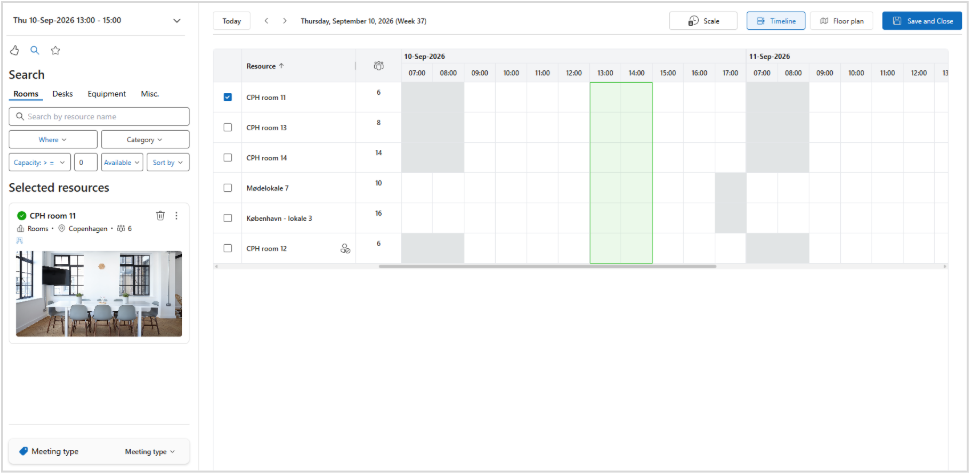
Your selected filters will follow you when opening this view.
You can change the duration of your booking by moving the lines right or left and you can choose a new time just by clicking in the timeline. When you have selected a resource it will appear in the left pane, if you want more information on a resource you can click on it, and information will also be shown in the left pane.
Floorplan view
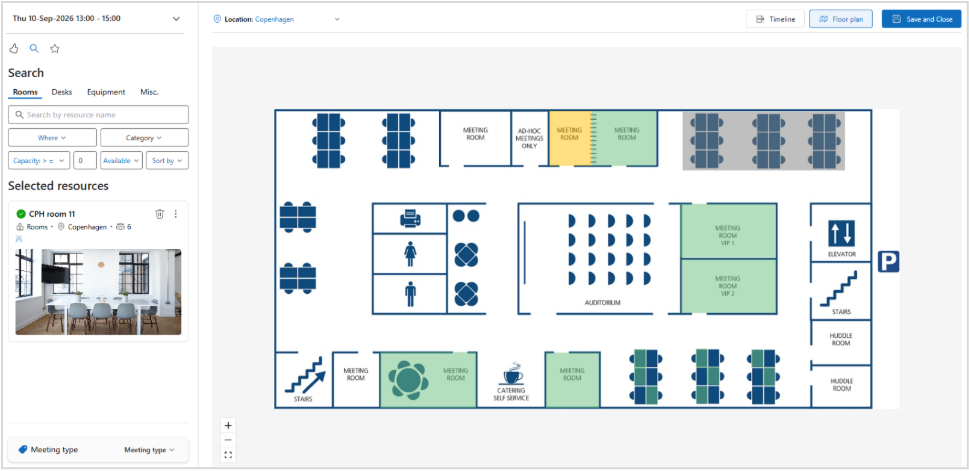
The floorplan view will now open directly in the enlarged view. You can select a resource by clicking on it and information about the resource will be shown when hovering over with the mouse.
Finding resources has never been faster
We are presenting a new version of our Client App for Outlook. The new version will make it even easier to quickly find a suitable resource.
Recommended for you
The Client App will start out by showing you a list of recommended resources based on your default location, default resource type, availability, favorites and most used resources. Under each tab you will see the recommended resources for that specific resource type.
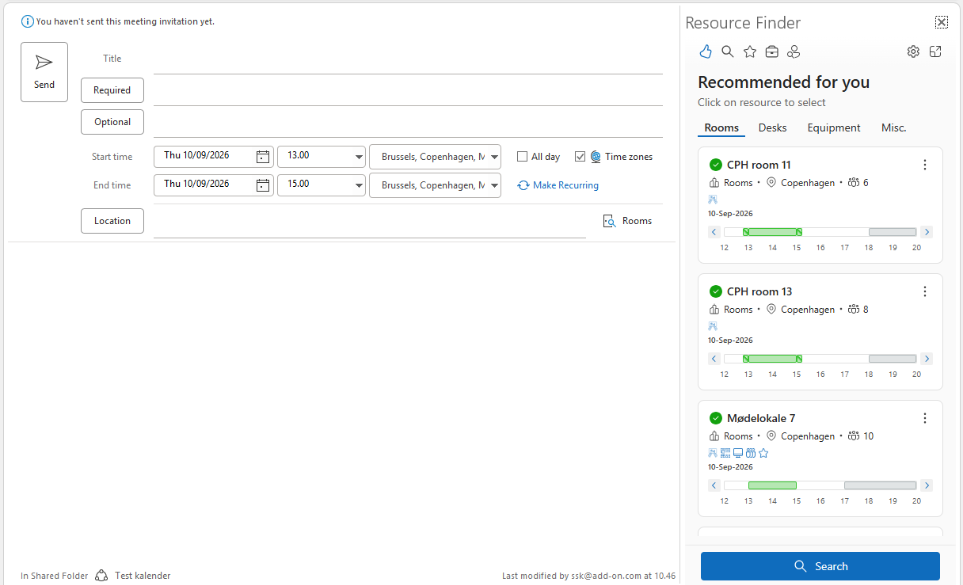
When opening the new Client App for the first time, all users will be prompted to apply a default location and a default resource type, to make sure the recommendation screen has the best conditions.
It is of course also possible to use the well-known Search feature if you want to apply your own filter options.
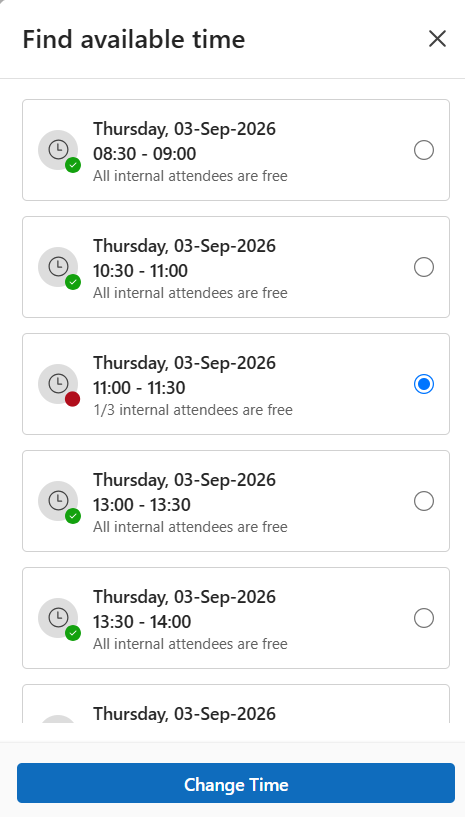
Quickly find the best available time
We have included a new function that allows the user to quickly get suggestion for meeting time where all invited can participate and where at least on resource is also available.
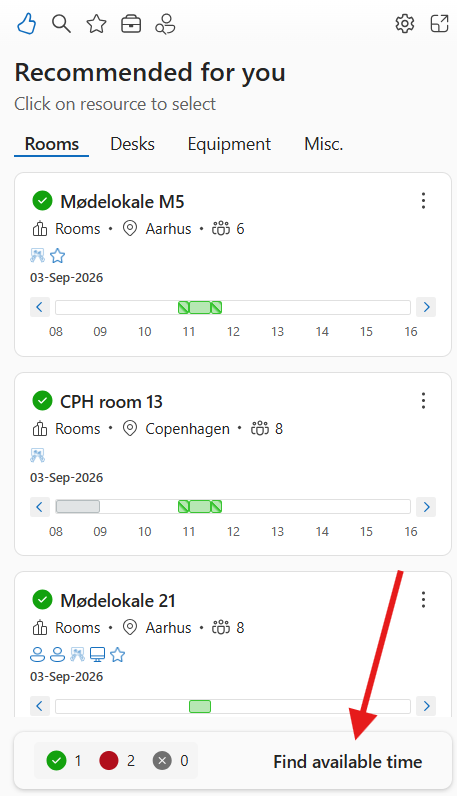
Find available time will give the users a set of alternative times that can easily be picked to change time of the meeting.
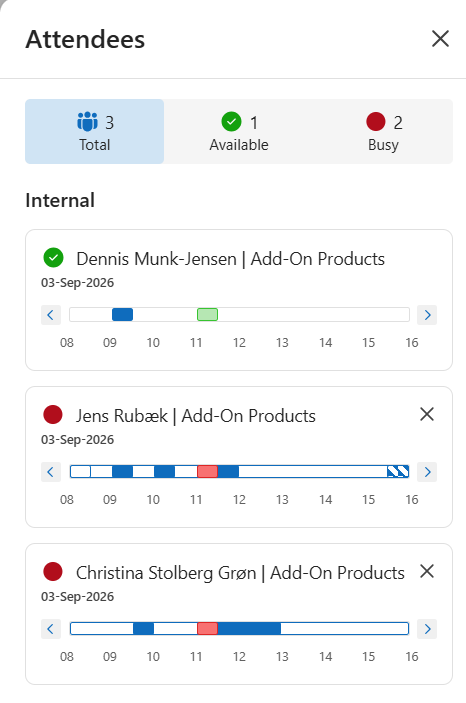
And at the same time we also offer the user an easy overview of the attendees. This will enable the user to determine exactly which attendees that can participate or not.
Was this article helpful?
That’s Great!
Thank you for your feedback
Sorry! We couldn't be helpful
Thank you for your feedback
Feedback sent
We appreciate your effort and will try to fix the article