Overview
This knowledge base provides step-by-step instructions for configuring the Entra ID Application before installing Resource Central Apps on your Resource Central server. For details on the installation process, refer to the Resource Central Apps Installation Guide.
Step-by-step configuration
After installing the Resource Central Apps package on the Resource Central server, the Resource Central Apps manager panel as shown below is displayed (http://localhost/ResourceCentralApps/manager.html).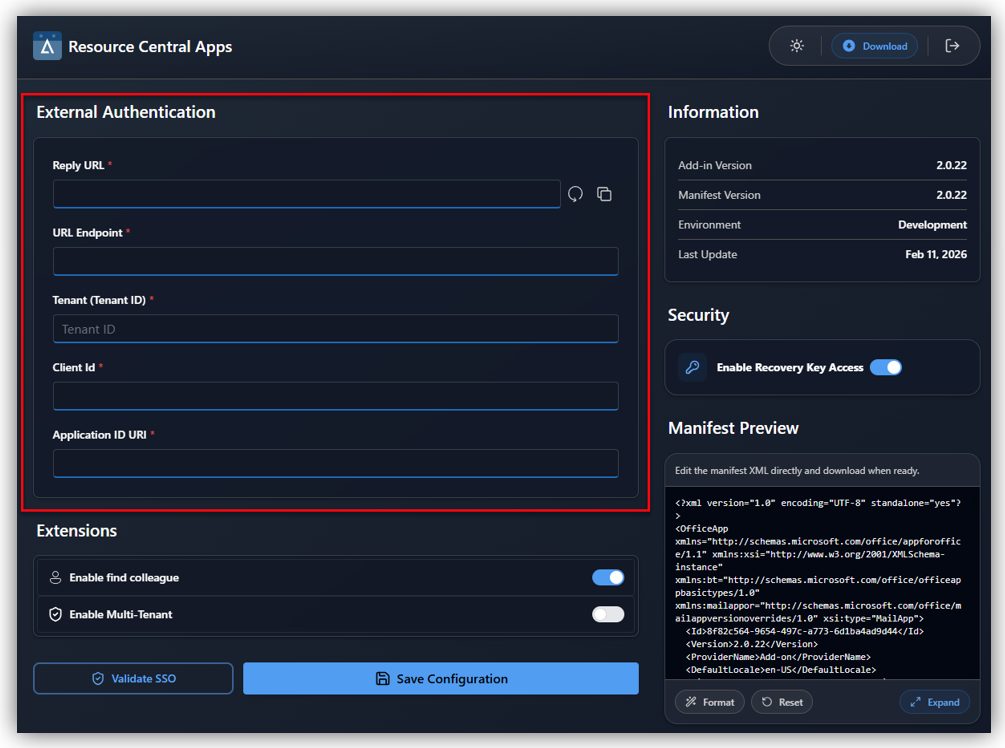
You must configure Single Sign-On (SSO) for it by following the steps outlined below:
Step 1: Register app in Microsoft Entra Admin Center
1. Navigate to Microsoft Entra Admin Center → Entra ID → App registrations and click [New registration].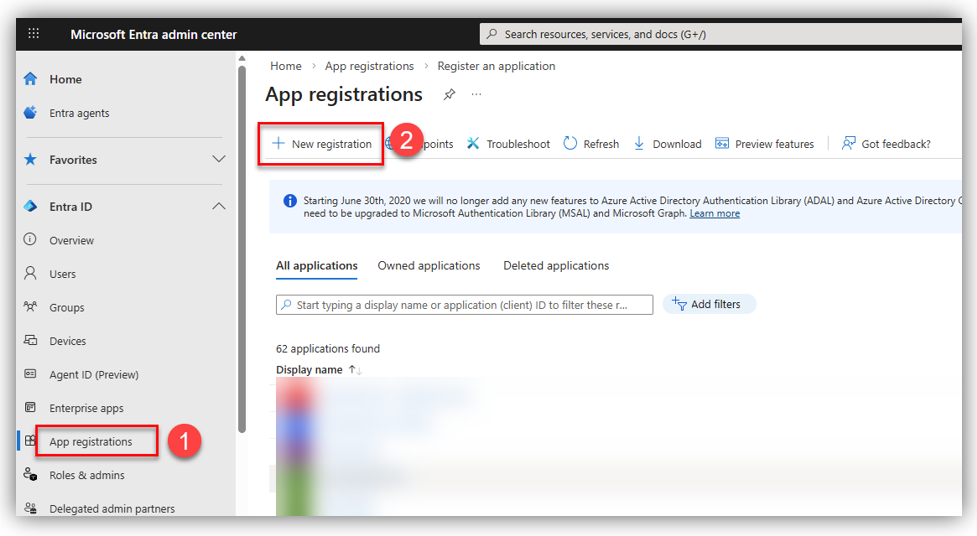
2. On the ‘Register an application’ screen, fill in application details: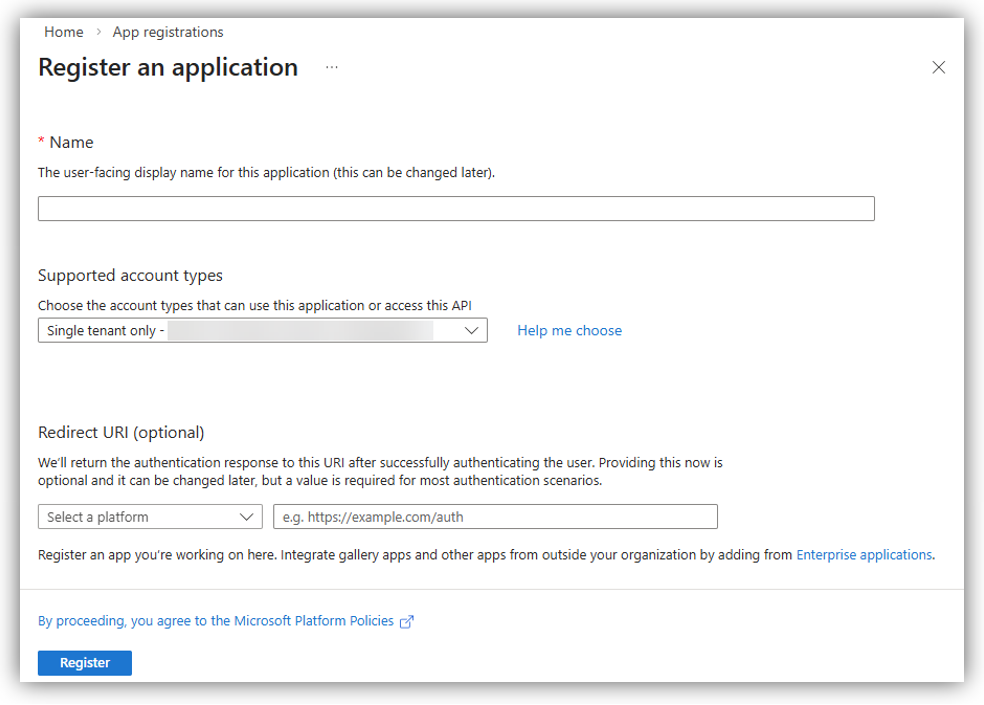
- Name: enter application name.
- Supported account types:
- If the application only supports user authentication from a single Entra ID tenant: select ‘Single tenant only - …’
- If the application supports user authentication from multiple Entra ID tenants: select ‘Multiple Entra ID tenants’. This type allows you to either grant access to all Entra ID tenants or restrict access to only specific tenants, depending on your requirements.
- Allow all tenants: This makes your application available to any user with an account in any Microsoft Entra ID tenant.
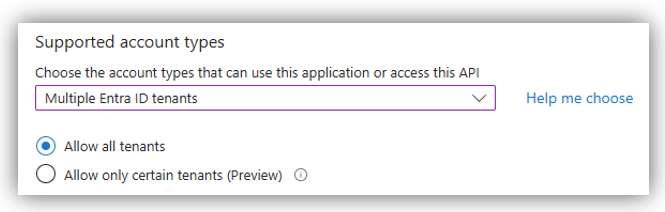
- Allow only certain tenants: This makes your application available to users with accounts in specified Microsoft Entra ID tenants.
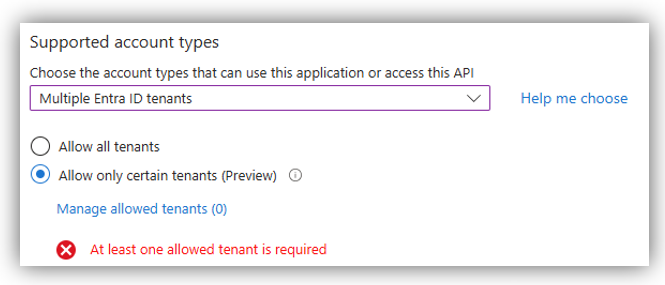
Click [Manage allowed tenants] to add specific external tenants. Enter the Tenant ID or tenant domain and click [Add] button to insert a tenant allowed to use this app.
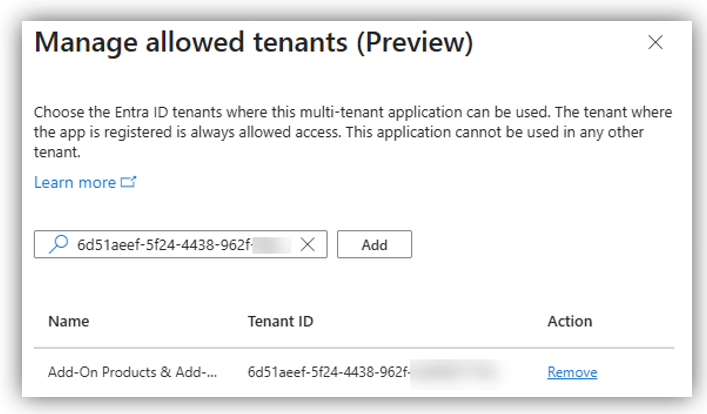
Repeat this procedure to add additional tenants. When completed, click [Apply] to save your settings.
- Redirect URI: select ‘Single-page application (SPA)’ platform, then enter the Reply URL of Resource Central Apps with the following format to the right box.
https://your-RC-domain/ResourceCentralApps/taskpane.htmlExample for Redirect URI configuration:
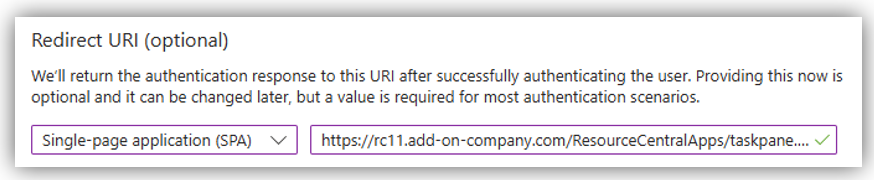
Click [Register] button at the bottom of the screen. Your app will then be created in your Entra ID tenant.
Step 2: Expose an API
On the Expose an API section, select [Add a scope]. A URI is automatically filled for you. Now, change the value of this field by adding the RC backend URL to this value as follows:
api://your-RC-domain/[Application (client) ID of this app]E.g.: api://rc11.add-on-company.com/7761756e-44b0-48d3-8c2b-25998ccda91c
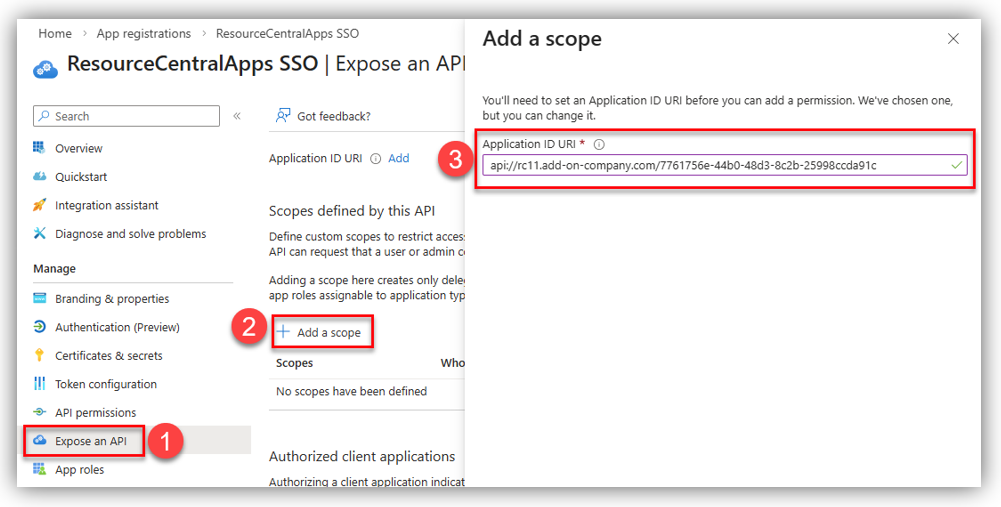
Press [Save and continue] and you will be directed to the following screen that requires you to configure a scope.
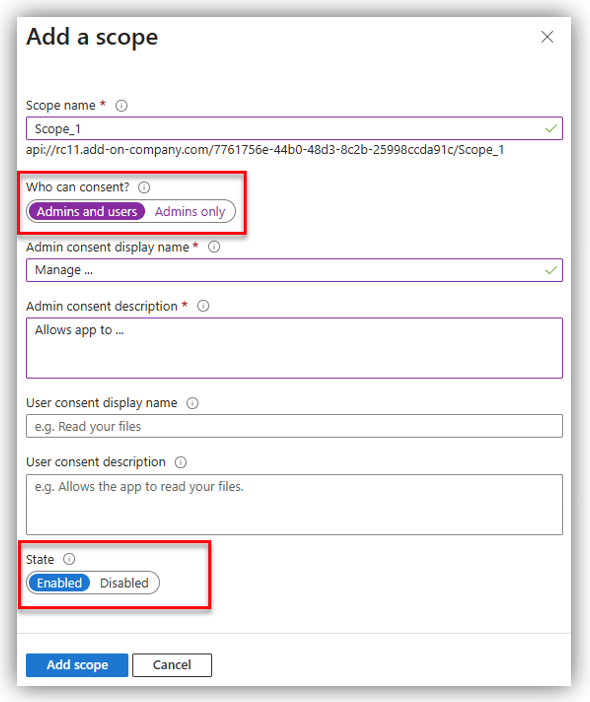
This scope is used to authorize specific client applications, such as Microsoft Office endpoints. By authorizing these client applications and linking them to this scope, users will not be asked to consent when the client calls the API.
Fill in the blanks and remember to select [Admins and users] in the “Who can consent?” field and [Enabled] for “State” field.
Press [Add a scope] to save the scope.
Next, you need to create another scope which is used to grant delegated API permissions to your application. Specifically, you must grant your application permission to use the access_as_user scope so that the application can access the API as the signed-in user.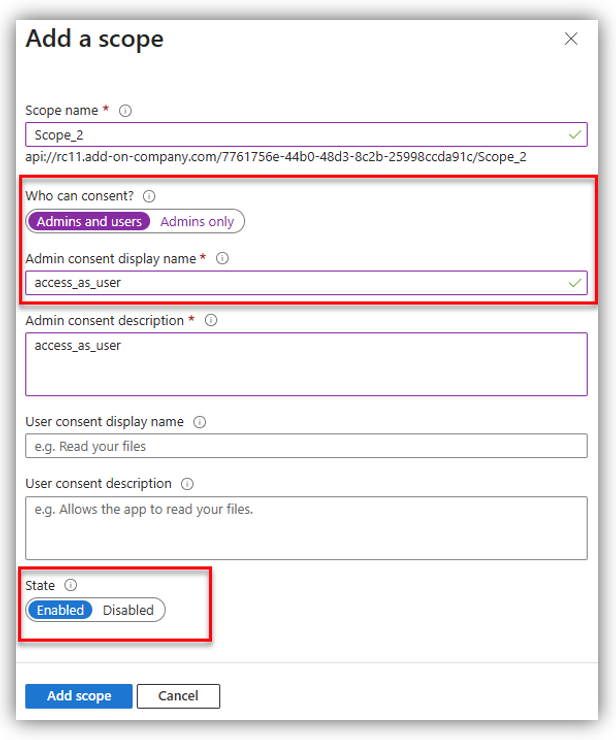
Click [Add scope] and you can see the scopes added in the Scope list: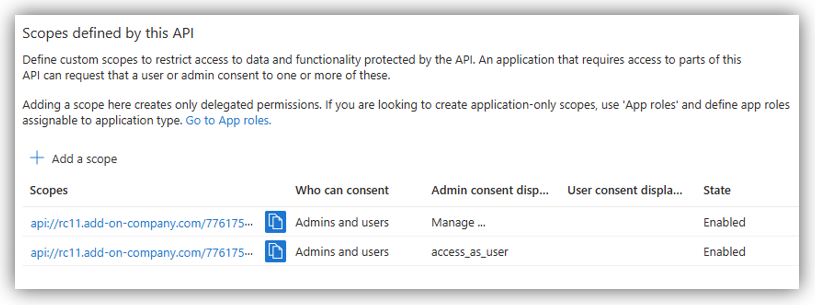
Then, scroll down to the Authorized client applications and click on [Add a client application]: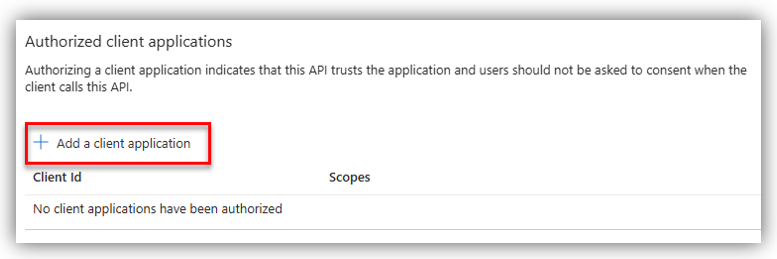
There are four Client IDs that you can choose from, each allows specified Office app to have access. The first and recommended option is the Client ID for all end points:
- For all Microsoft Office application endpoints (highly recommended): ea5a67f6-b6f3-4338-b240-c655ddc3cc8e
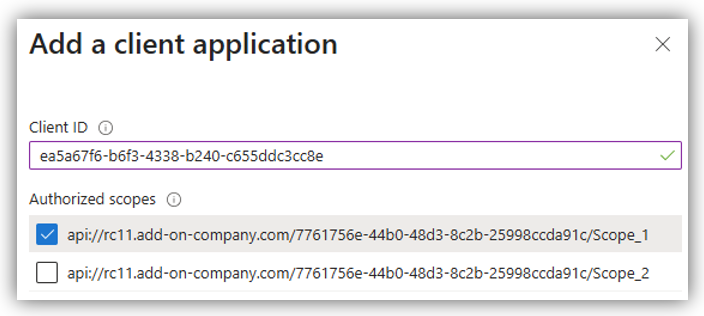
Remember to check on the first scope (in this guide it is Scope_1) you just created and click [Add application]. After adding the above client ID, you can see them displayed on Authorized client application section: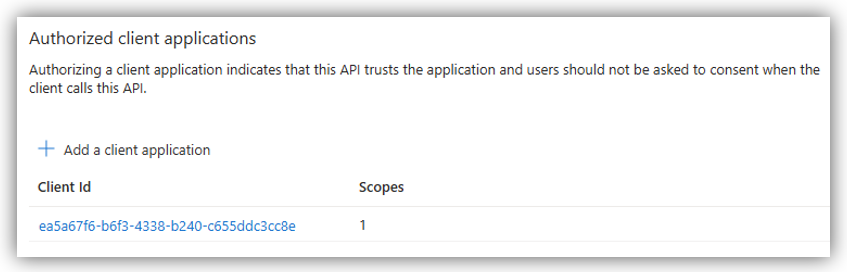
More detailed control can be achieved by specifying a specific application type. However, the deployment of the manifest will happen on all platforms, so if you exclude an app type from below, then the Add-in will be present but not working.
- For Microsoft Office (desktop app): d3590ed6-52b3-4102-aeff-aad2292ab01c
- For Outlook on the web: bc59ab01-8403-45c6-8796-ac3ef710b3e3
- For Office on the web: 93d53678-613d-4013-afc1-62e9e444a0a5
Step 3: Configure API permissions
On your Entra ID app for Resource Central Apps configuration, go to API permissions then click [Add a permission]: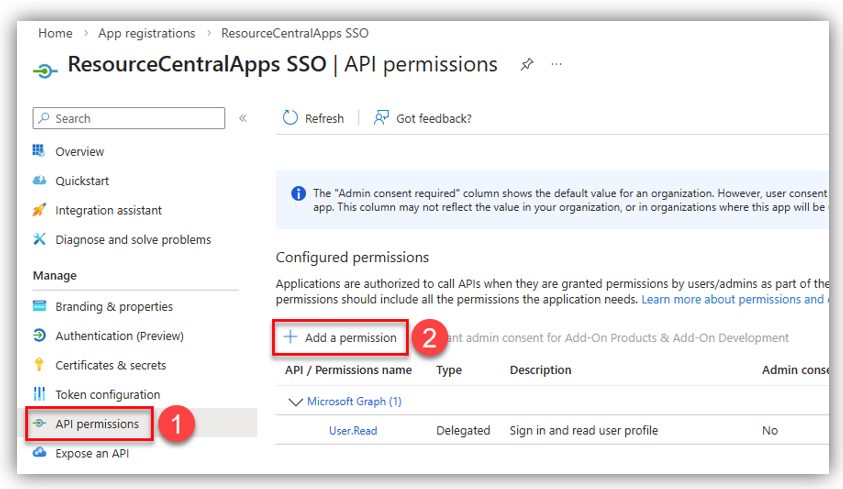
After that, the Request API permissions screen will appear, in which you select Microsoft APIs → Microsoft Graph → Delegated permissions: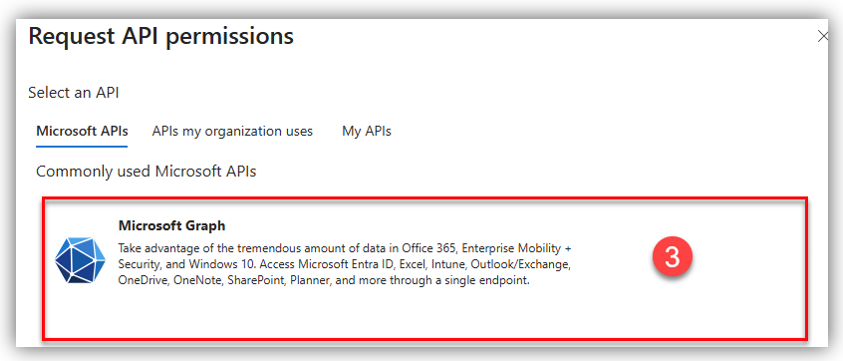
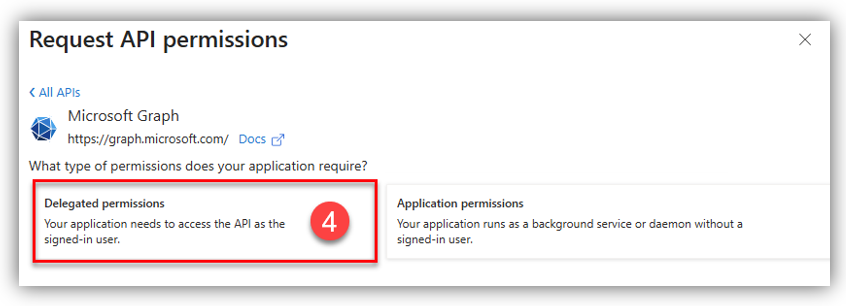
Search and add the following permissions:
- Calendars.Read.Shared
- openid
- profile
- User.Read
In addition to the permissions above, you must grant your application permission to use the scope access_as_user. Continue to click [Add a permission]: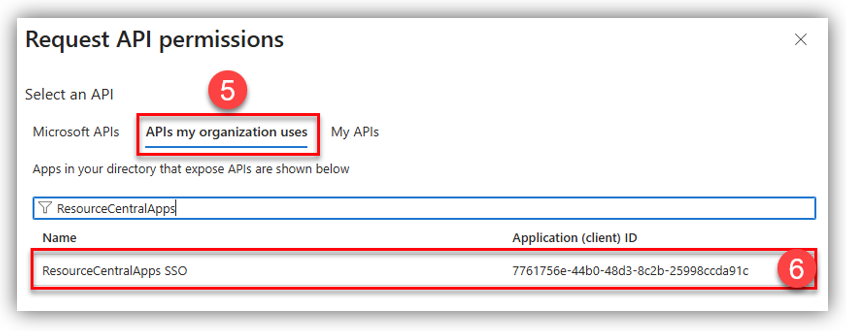
Select APIs my organization uses tab, search for your application name, and select it to display the following screen: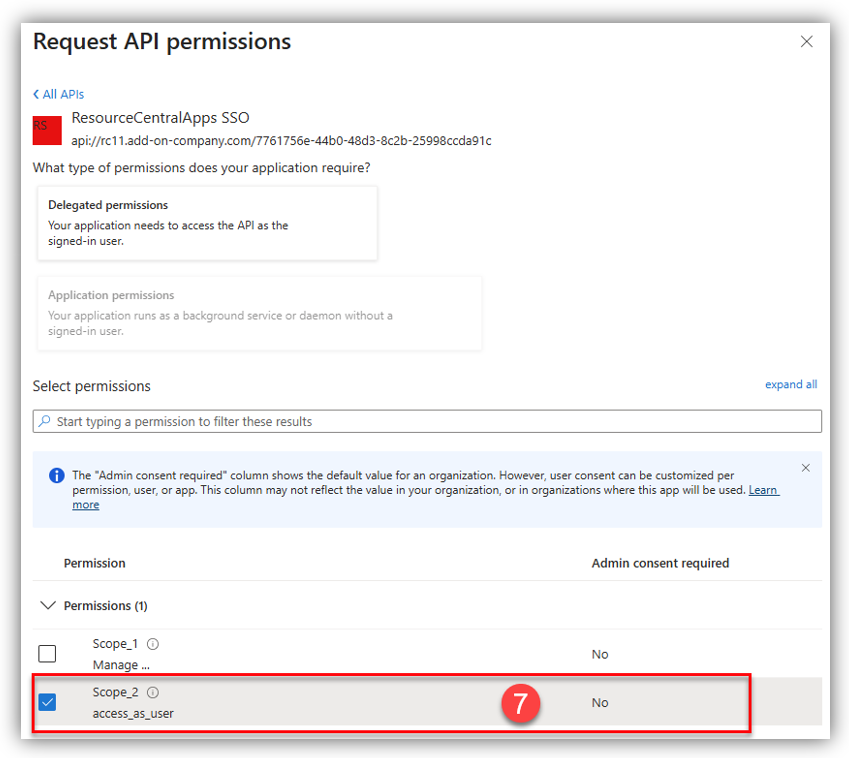
Choose the access_as_user scope, then click [Add permissions] to continue.
Once you are done, click [Grant admin consent for …] for the added permissions. The result should assemble following figure: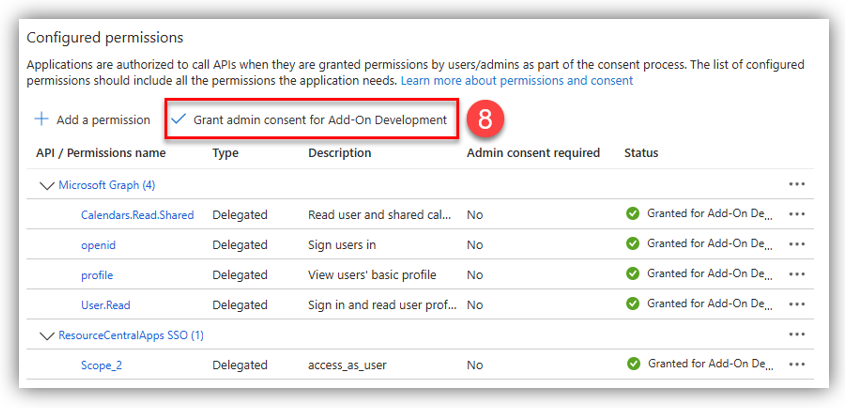
Step 4: Configure Authentication (Preview)
In the application settings, look for the "Authentication" section in the left sidebar.
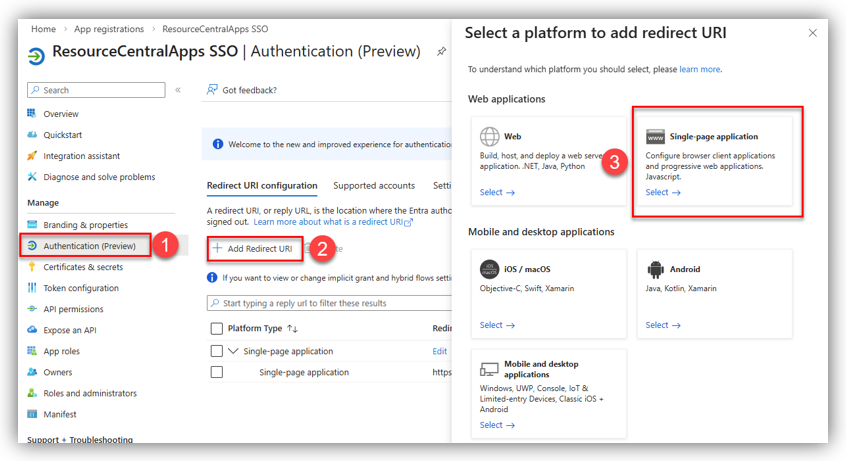
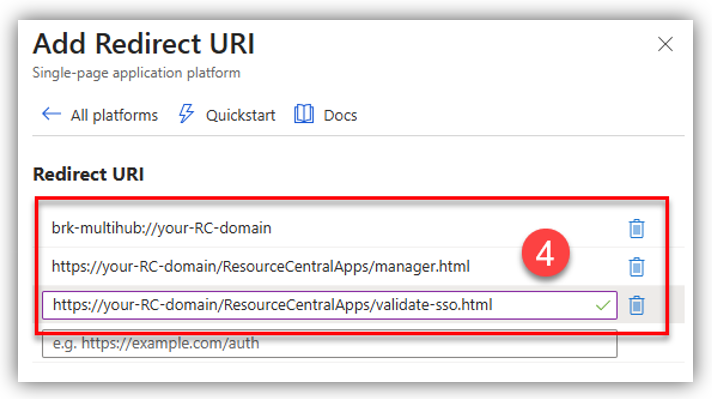
Click [Add Redirect URI] and select Under the “Single Page Application" section, click [Add URI], then enter the 4 redirect URIs with the following format:
brk-multihub://your-RC-domainhttps://your-RC-domain/ResourceCentralApps/manager.htmlhttps://your-RC-domain/ResourceCentralApps/validate-sso.html
Remember to replace your-RC-domain with the actual domain of your add-in, e.g.:
- brk-multihub://rc11.add-on-company.com
- https://rc11.add-on-company.com/ResourceCentralApps/manager.html
- https://rc11.add-on-company.com/ResourceCentralApps/validate-sso.html
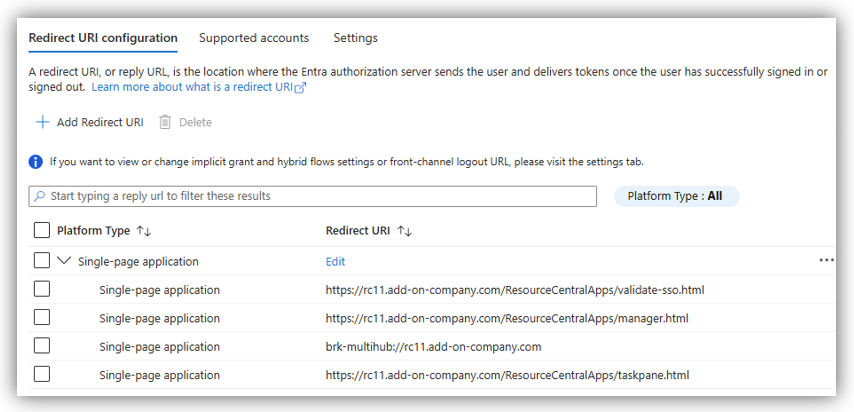
Click [Configure] to finish this step. The result should look similar to the figure below:
Step 5: Create Manager.Admin role and assign to users/groups
In the App roles section, you need to create the Manager.Admin role to control which users or groups are allowed to access and validate SSO on the Resource Central Apps manager panel.
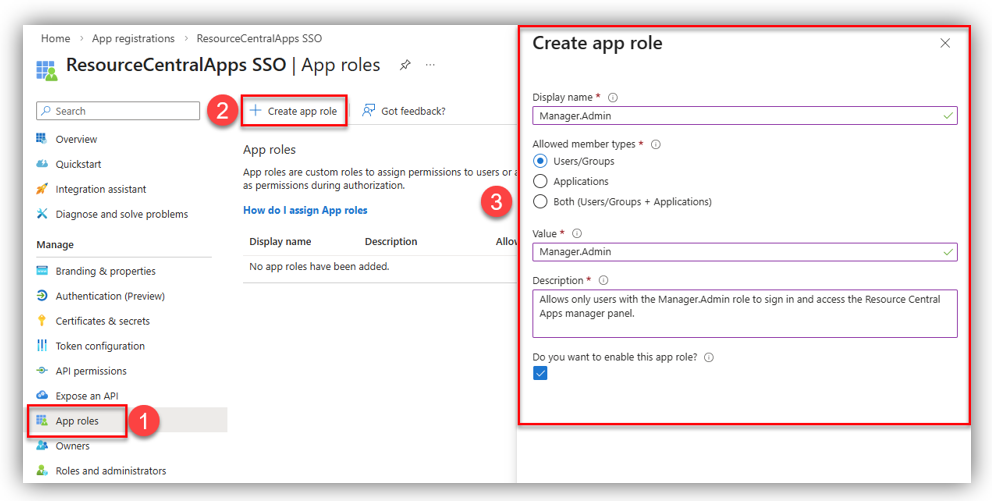
In the Create app role panel, configure the following fields:
- Display name: Manager.Admin
- Allowed member types: Users/Groups
- Value: Manager.Admin
- Do you want to enable this app role?: Yes
Click [Apply] to save the role.
The newly created role will then appear in the App roles list.
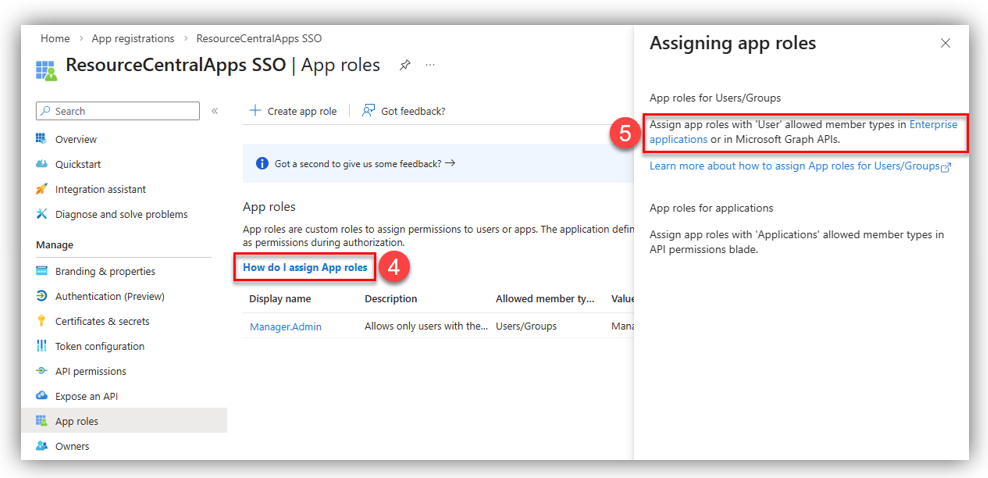
To assign this role to specific users or groups, click How do I assign app roles, which will take you to Enterprise applications, or select Enterprise apps from the left-hand navigation panel.
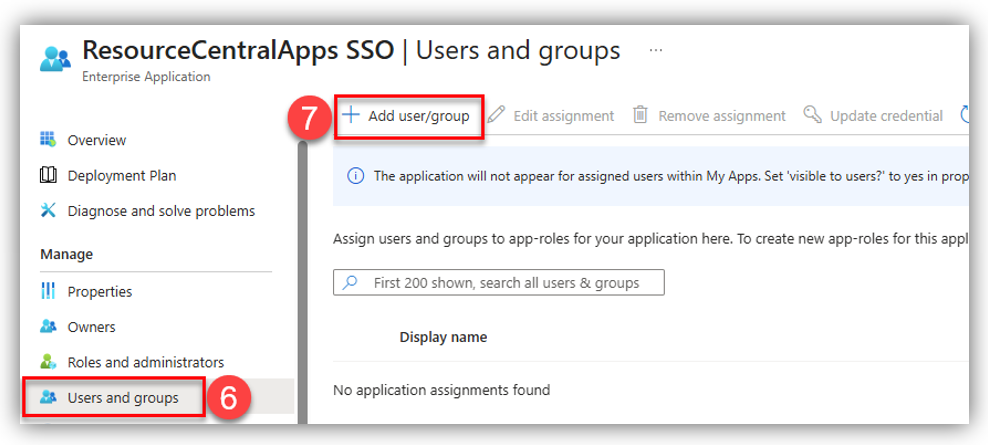
In the Users and groups section, click [Add user/group] to assign users or groups…
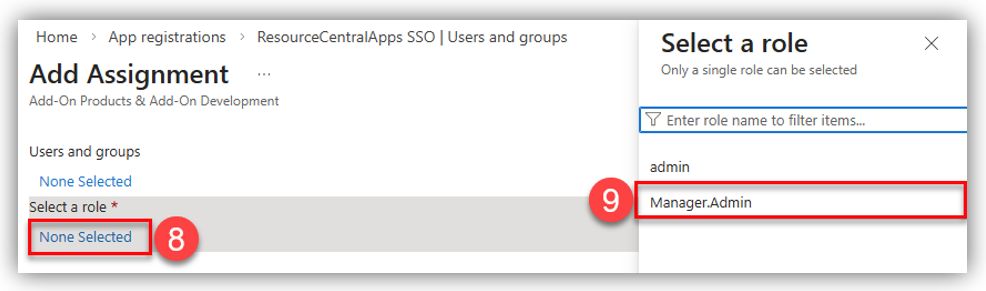
Under Select a role, click None selected, choose the Manager.Admin role, and then click [Select] to confirm:
Next, under Users and groups, click None selected to open the user and group selection list.
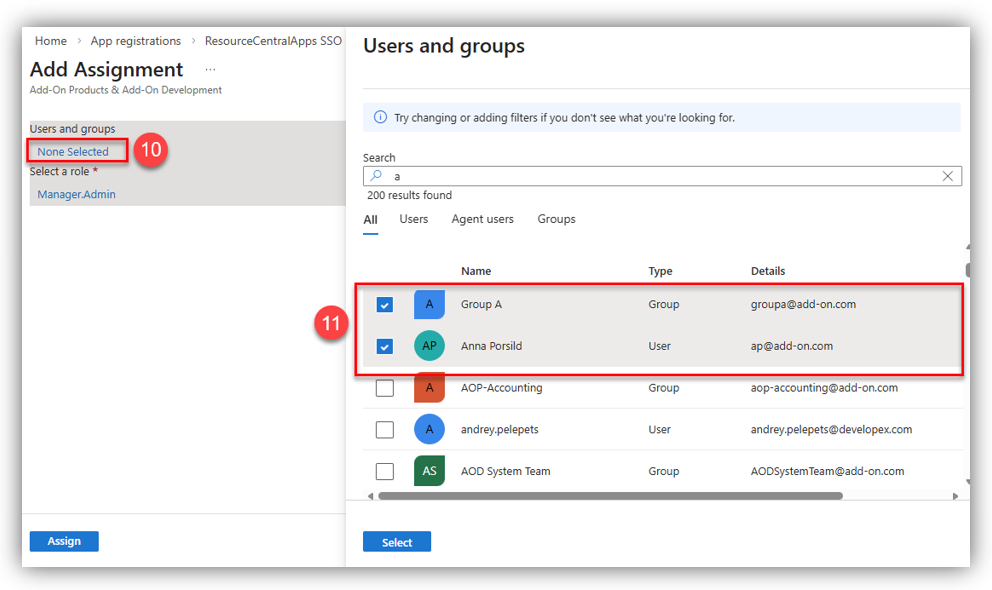
Search for and select the users or groups you want to assign the role to, then click [Select].
Note: When you assign a group to an application, only users directly in the group will have access. The assignment does not cascade to nested groups.
Finally, click [Assign] to complete this step.
Step 6: Retrieve details from app
Note: In this app, you need to retrieve the values of Tenant ID, Client ID, and Application ID URI. Remember to copy them elsewhere for future usage.
To retrieve details from this app, navigate to Overview by accessing your application.
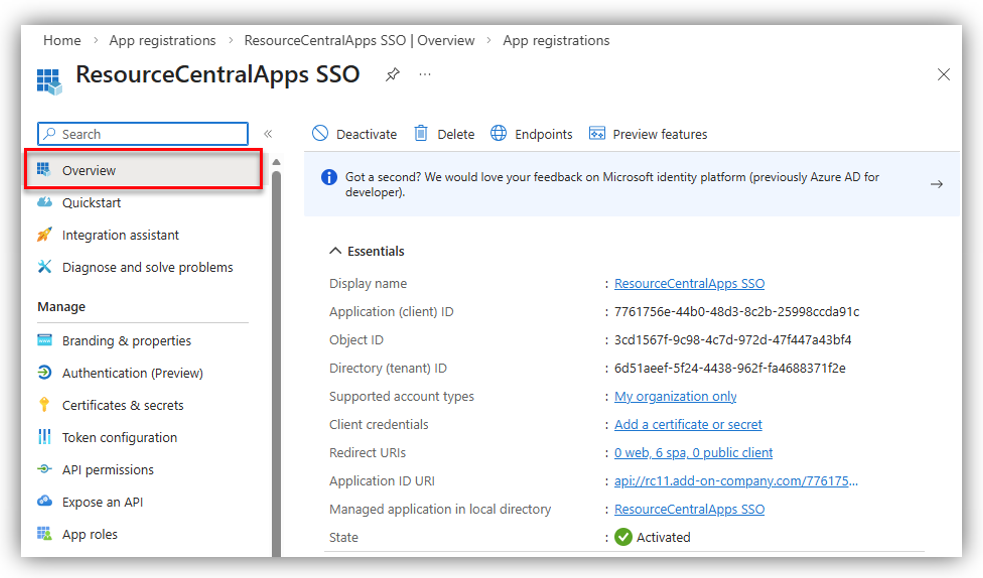
In this screen, you can see a list of Essentials, in which you can get:
- Client ID: retrieved from Application (Client) ID.
- Application ID URI
- Tenant ID: retrieved from Directory (tenant) ID.
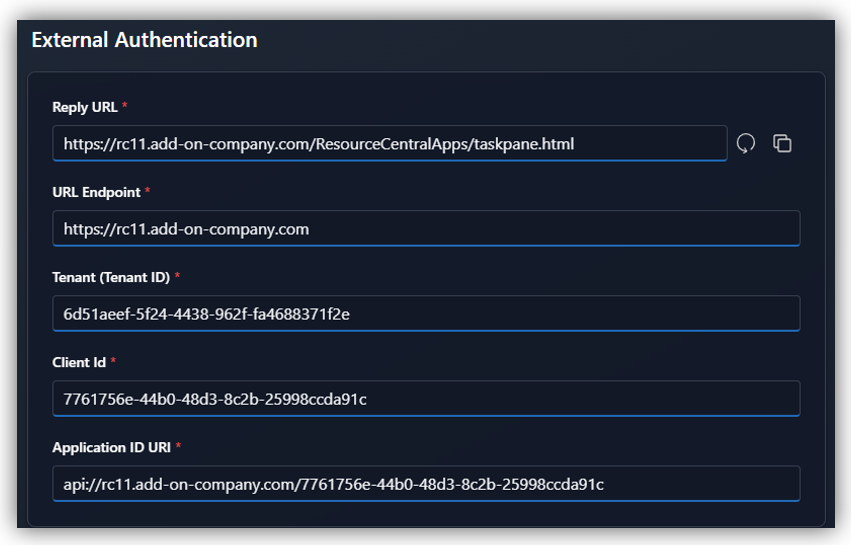
On the Resource Central Apps external authentication screen, fill in the required fields in the respective order:
- The URL Endpoint is your RC domain, e.g.: https://rc11.add-on-company.com
- After entering the URL Endpoint, click the refresh button on the right-hand side of the Reply URL field, and the Reply URL will be generated automatically.
- The Client ID and Application ID URI obtained from your Entra ID app registration.
Properties
Applies to: RC 4.4+
Reference: TFS #456442
Knowledge base ID: 0346
Last updated: April 14, 2026
Was this article helpful?
That’s Great!
Thank you for your feedback
Sorry! We couldn't be helpful
Thank you for your feedback
Feedback sent
We appreciate your effort and will try to fix the article